FR8 Driver AssistantHelp
EN
← All chapters
Chapter 6 · Communication

News, to-dos & briefings

12
34
5

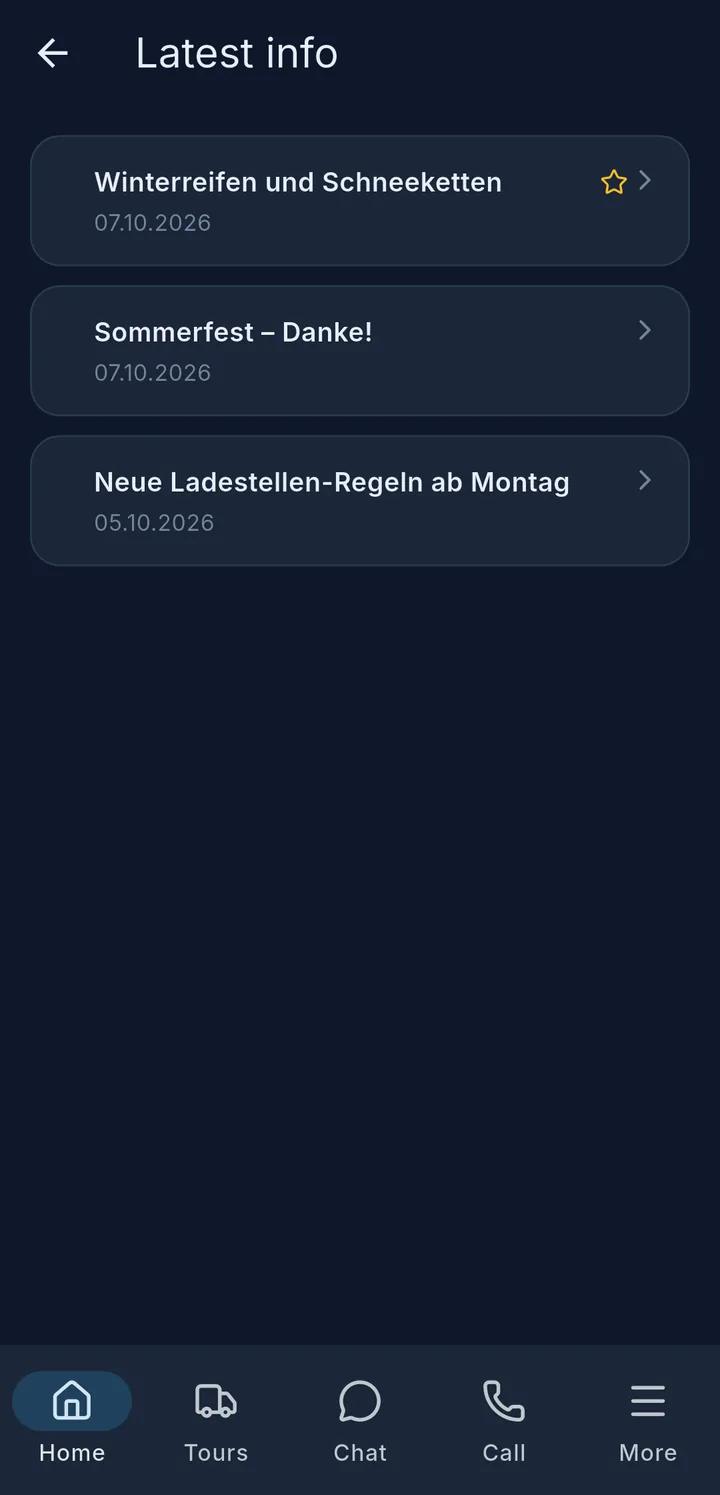
Latest info – messages from your company, newest at the top. A blue dot 1 means unread, a star 2 means important. Important messages also appear on the home screen.

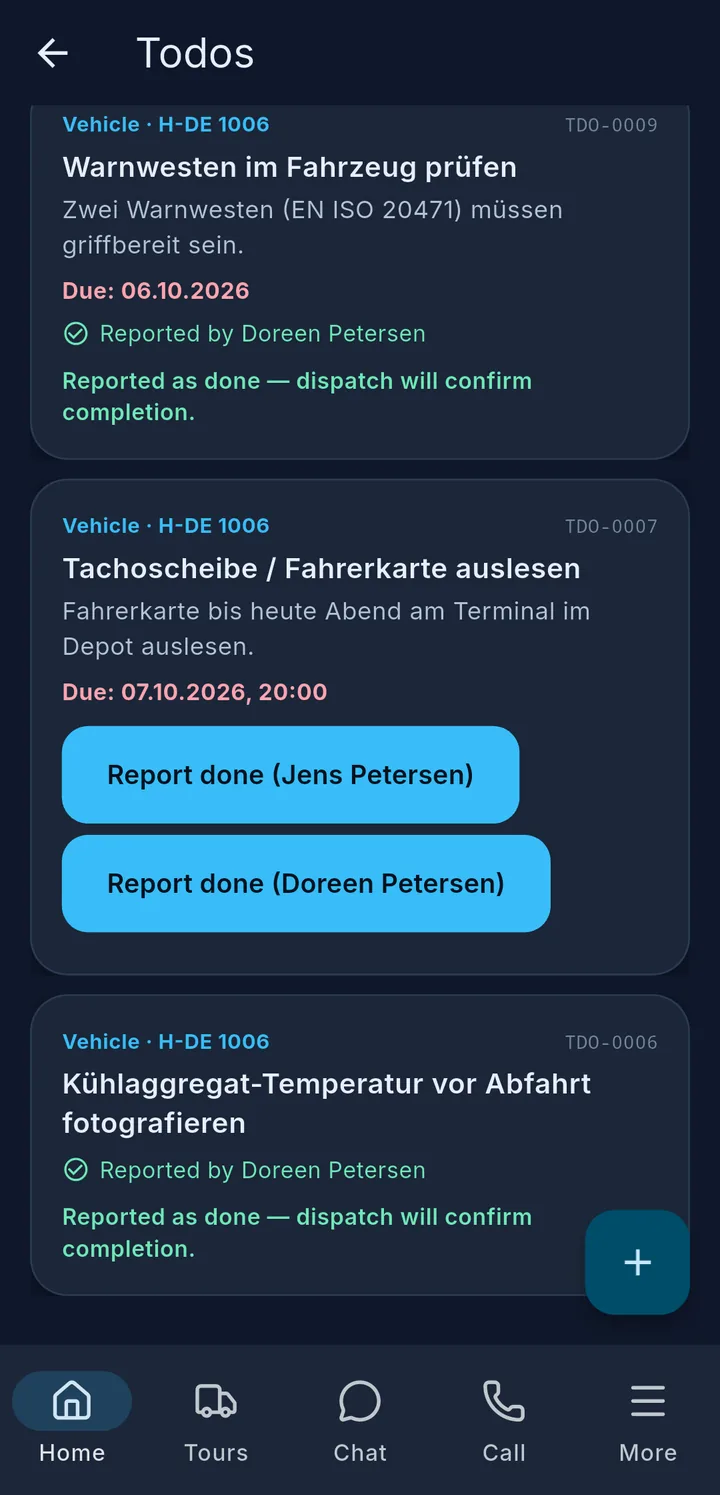
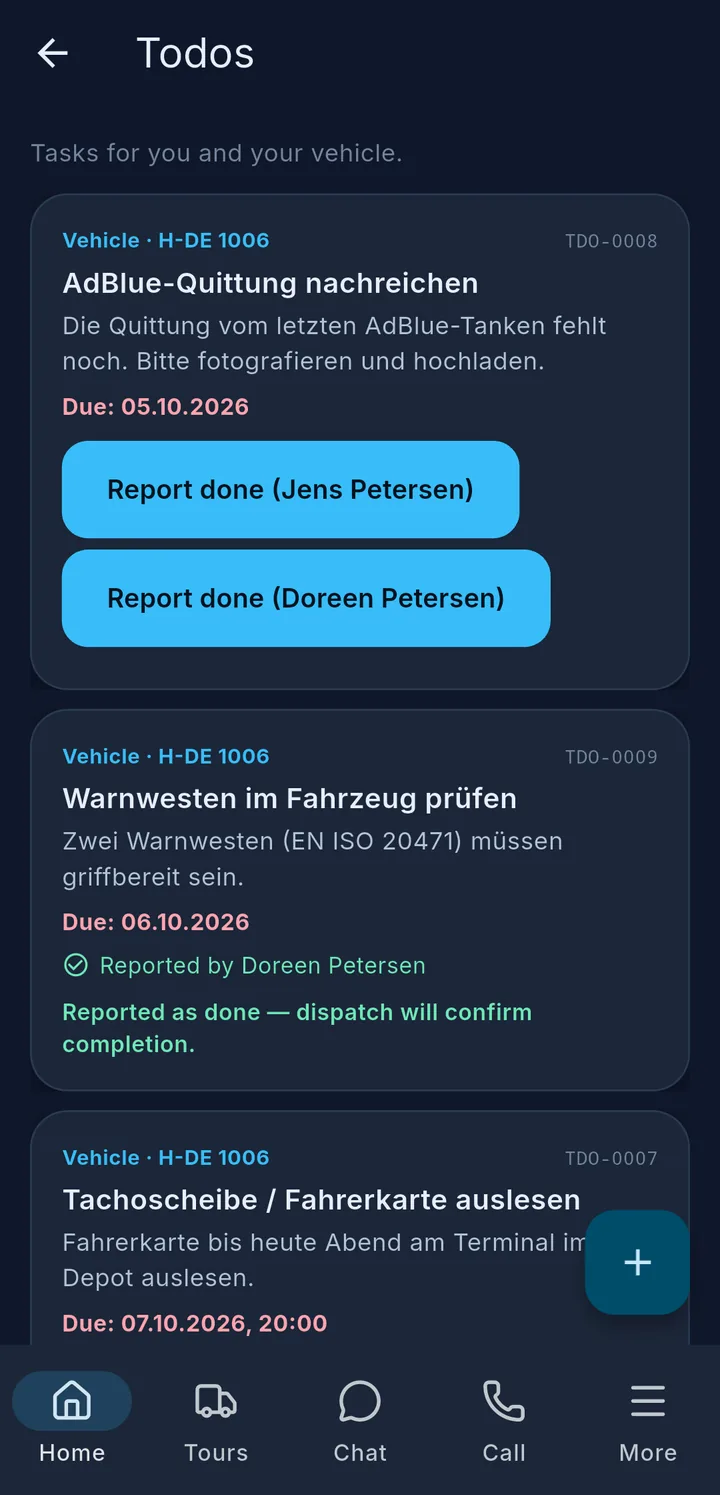
Todos – tasks dispatch gives you or the vehicle, e.g. "Check safety vests". Each card shows when it is due; overdue items are shown in red.

  • Done? → Report done 3. The task disappears as soon as dispatch confirms it.
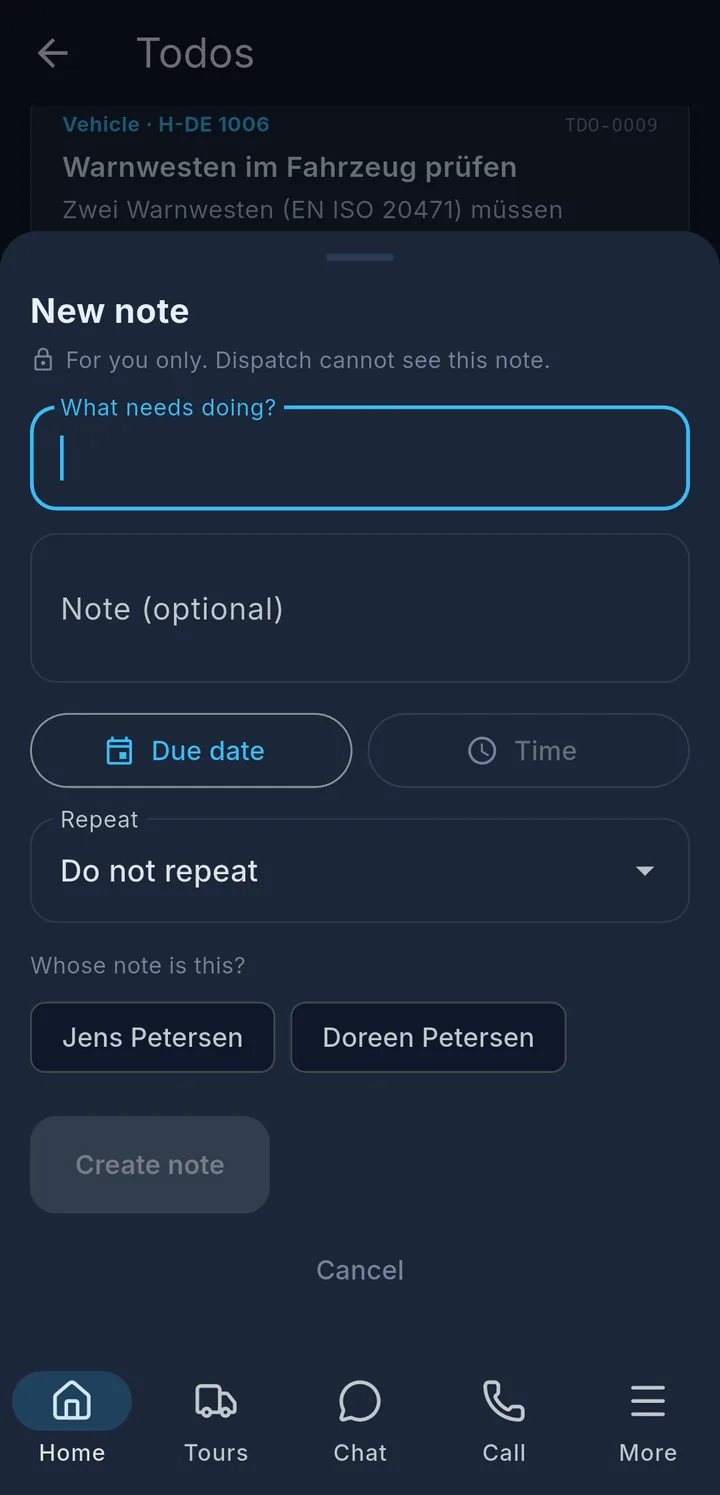
  • With the + 4 you create My own note, with a reminder and repeat if you like. Dispatch does not see your own notes.

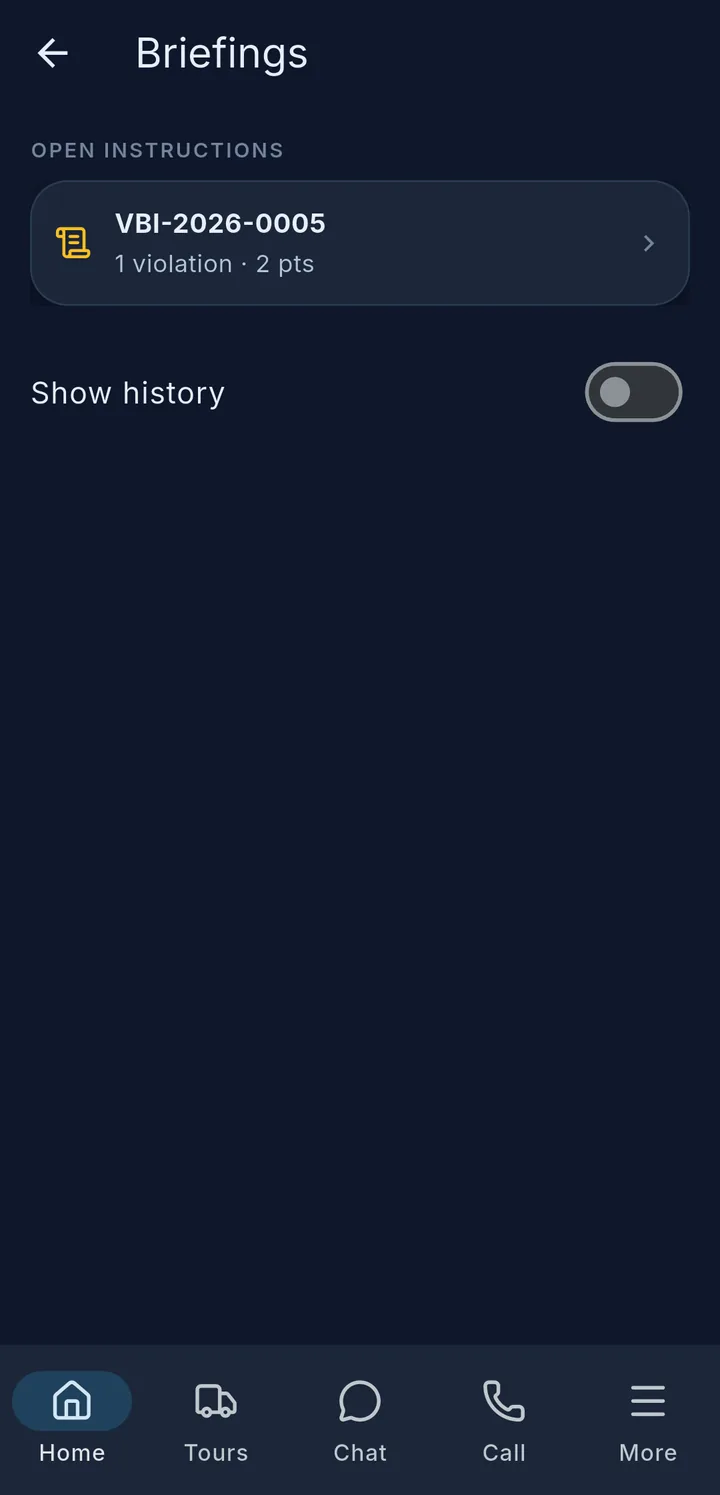
Briefings – e.g. on driving and rest times, or as a group briefing for everyone. Open briefings are shown at the top and on the home screen.

  1. Open the briefing and read it – under Details you see the individual violations.
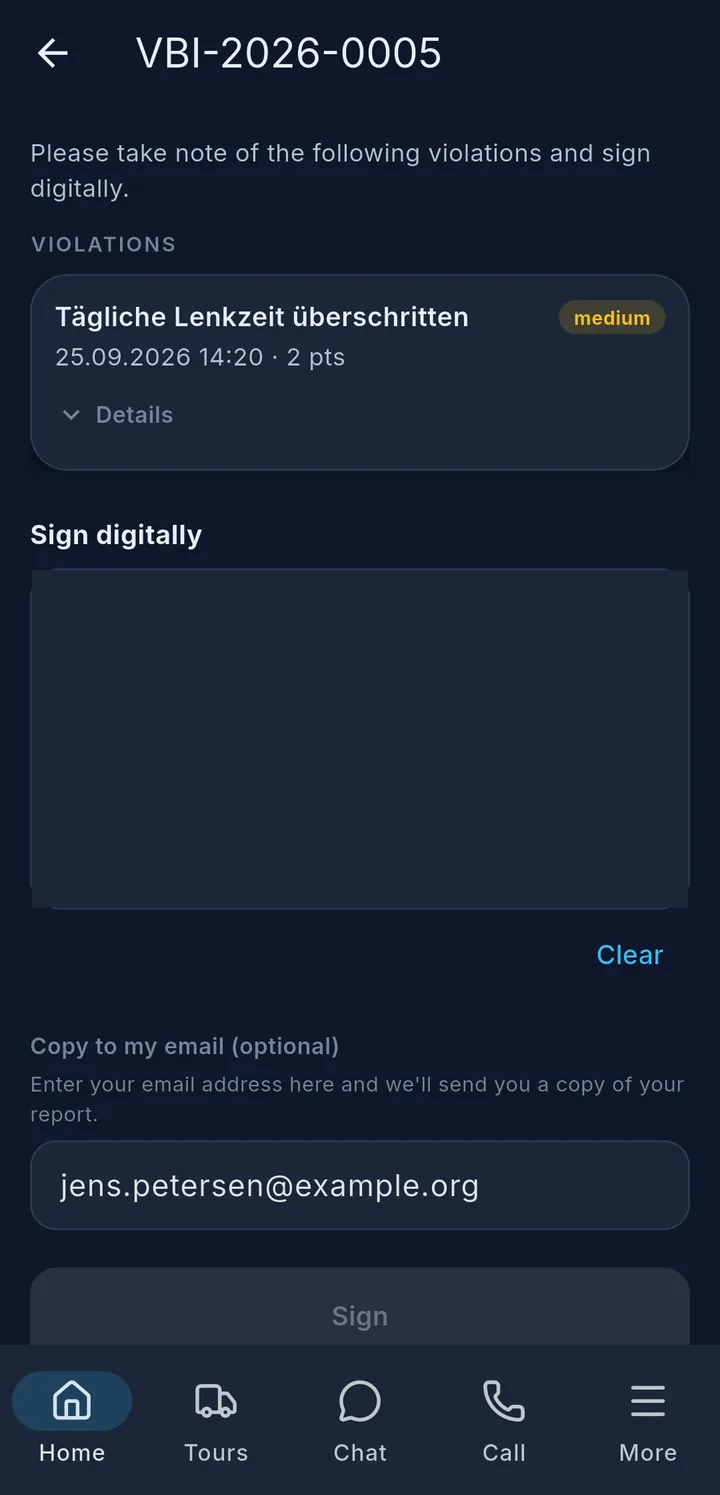
  2. Tap Sign digitally 5, sign in the field, tap Sign.

If you like, you get a copy by email. Show history shows briefings you have already signed.
More about news, to-dos and briefings

Latest info

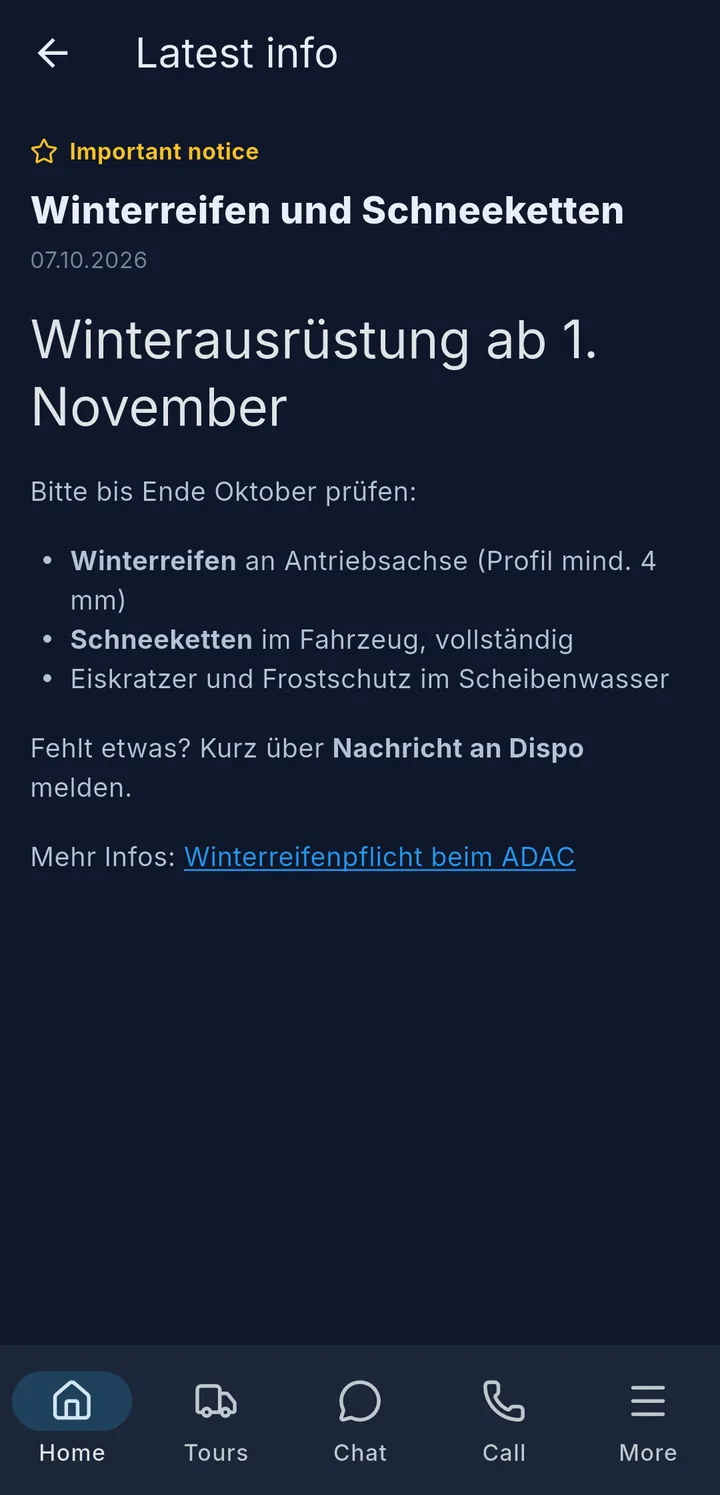
Opened Important notice with list and link

The number on the Latest info tile shows how many messages you have not read yet. Tap to open the message. It can contain headings, lists, links and Attachments. Important messages show Important notice at the top.

To-dos in detail

Two Report done buttons for two drivers, above them to-dos with Reported as done — dispatch will confirm completion.

Each card shows vehicle, title, description and Due. If a to-do is assigned to one driver, it says "Responsible: …" at the top.

Two of you in the vehicle: Then each of you has your own button, e.g. "Report done (Jens Petersen)". Whoever reported it is then shown on the card with a tick ("Reported by …").

After reporting, the card shows Reported as done — dispatch will confirm completion. The to-do only disappears when dispatch confirms it.

Open to-dos are also shown on the home screen. The app can announce new to-dos by push. You switch this on or off under More → Notifications → Todos – see Settings, offline & sign-out.

Your own notes

New note: What needs doing?, Due date, Repeat, Whose note is this?

The + at the bottom right opens New note:

  1. What needs doing? – required. Below it Note (optional) for details.
  2. Due date and Time – if the note is due on a certain day.
  3. Repeat – e.g. Daily, Weekly or Monthly. Then you choose whether it comes back after completing or on schedule. On schedule only works with a date under Due date.
  4. If you drive as a team of two: Whose note is this?
  5. Create note.

Your own notes show a lock and My own note at the top. Dispatch does not see them. Use the bin on the card to delete a note – the app asks first.

Briefings in detail

Open instructions with number of violations and points, below them Show history
Sign digitally, Copy to my email (optional) and Sign

Under Open instructions each briefing is listed with the number of violations and the points, e.g. "1 violation · 2 pts". A Group instruction applies to all drivers.

The briefing lists the Violations with date, points and rating (minor, medium or severe). Details opens more information, e.g. duration or value.

Signing:

  1. Under Sign digitally, sign in the field with your finger. Made a mistake? Clear empties the field.
  2. Copy to my email (optional) – your address is usually already filled in. Leave it empty if you do not want a copy.
  3. Tap Sign. The app confirms "Instruction signed".

With the Show history switch you also see the briefings you have already signed.