FR8 Driver AssistantHelp
EN
← All chapters
Chapter 7 · Vehicle

Departure check, handover & service

12
3
45

Departure check – before you set off, you check the vehicle using your company's checklist.

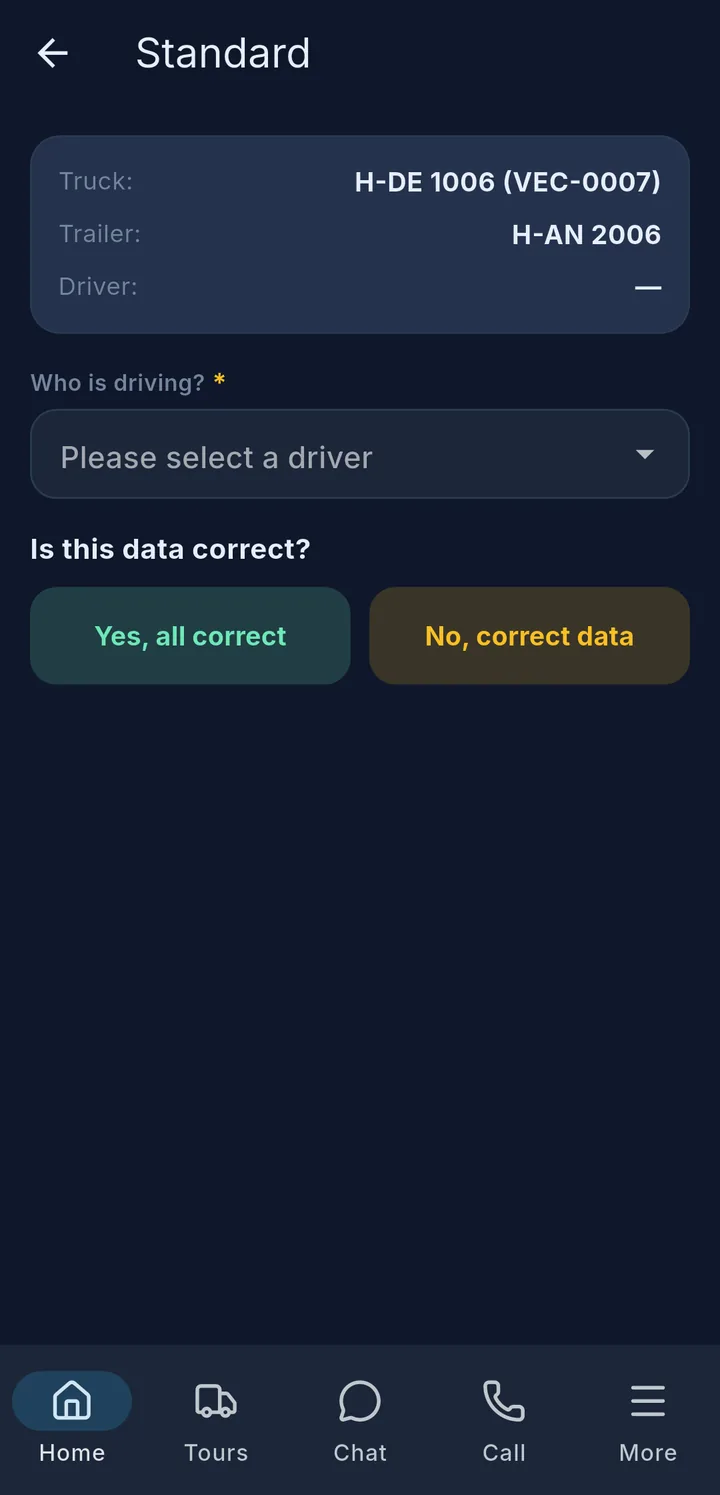
  1. Check truck, trailer and driver, choose your name under Who is driving?.
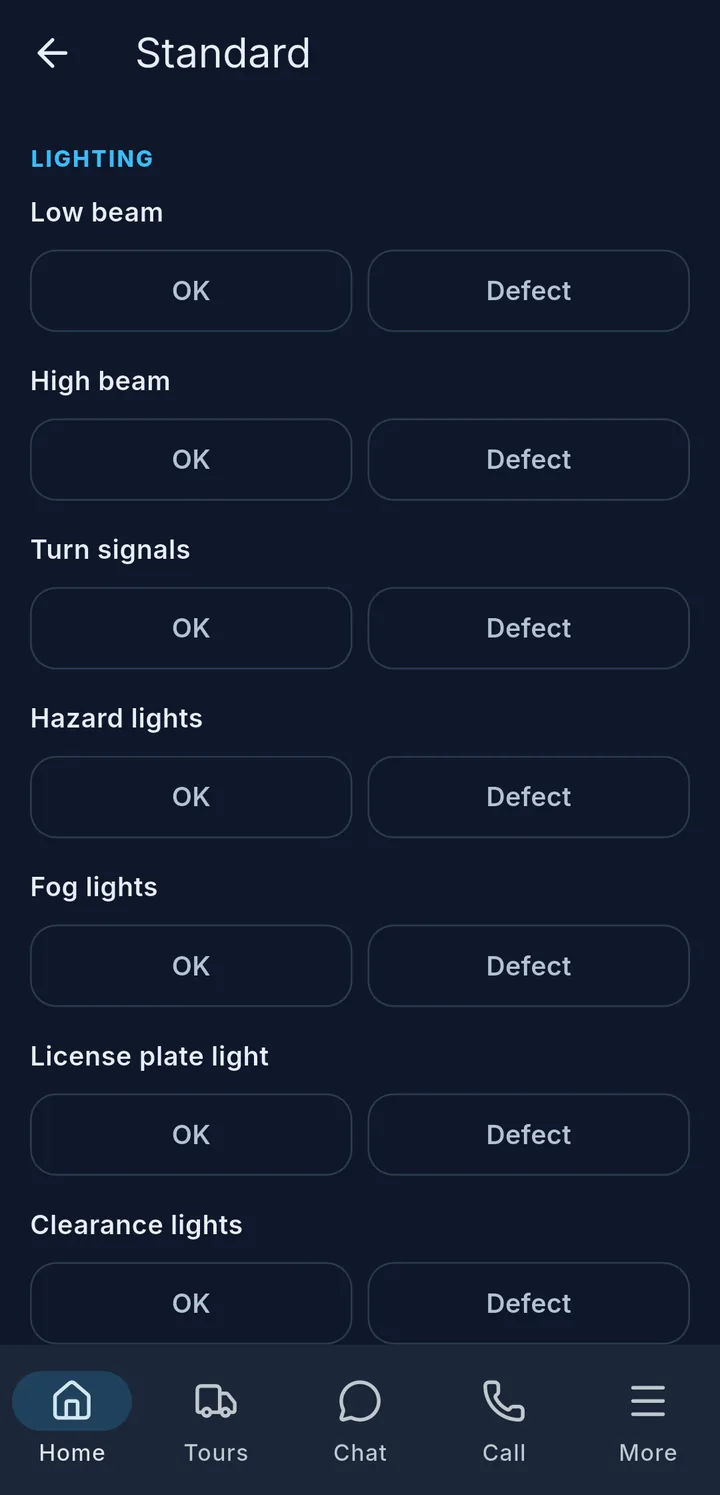
  2. Answer every check item: OK 1, Defect 2 or Not applicable. For a defect, describe it briefly and take a photo.
  3. Sign and tap Submit departure check.

Defects go straight to the fleet team.

Required by law

Under § 36 DGUV Vorschrift 70 you must check the vehicle for visible defects before the start of every work shift. Take your time and go through the whole checklist.

Handover – records the condition in which you hand over or take over a vehicle. The step indicator 3 shows where you are: direction and other driver, mileage, check items, photos, signature, Send handover.

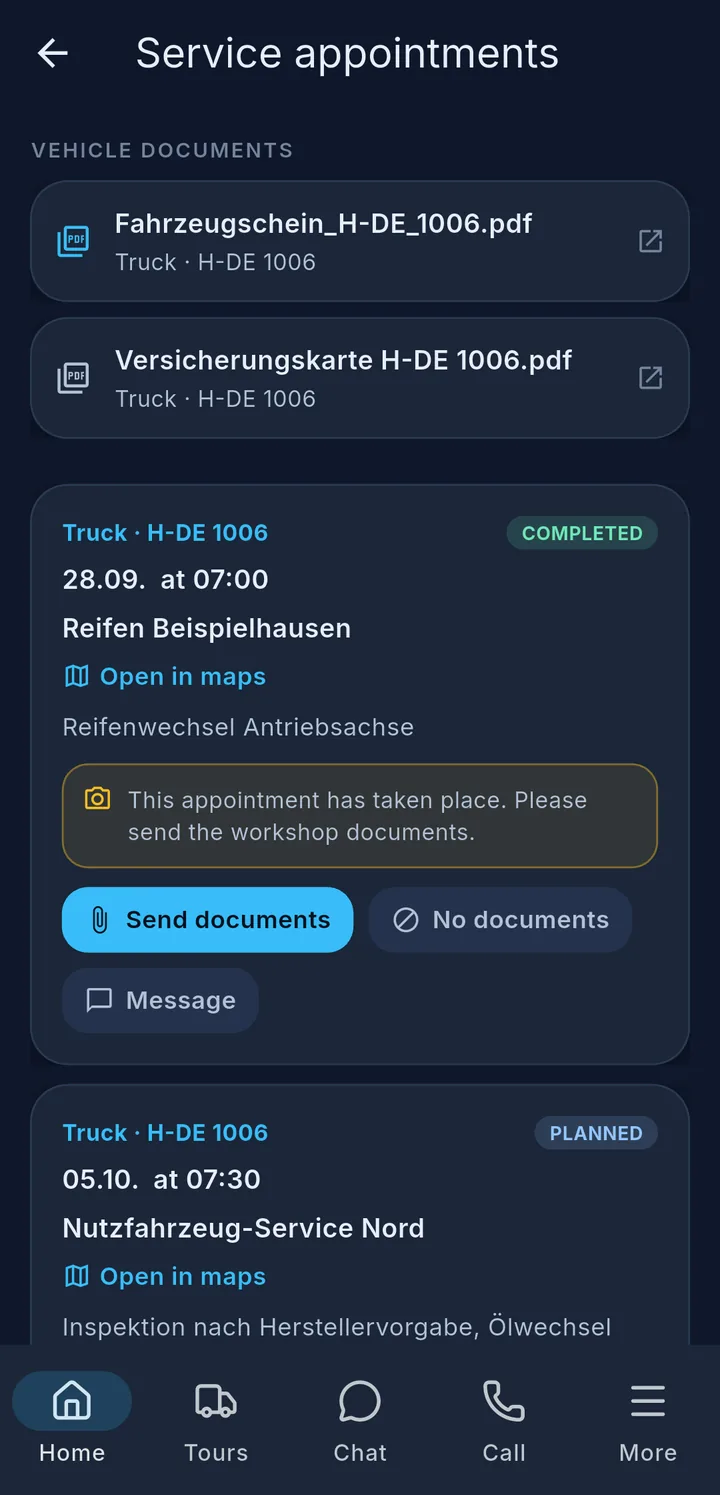
Service – shows the workshop and inspection dates of truck and trailer, with the Vehicle documents 4 such as the registration certificate at the top. Each appointment 5 has date, workshop and status, e.g. Planned or Open (urgent). After the appointment the app asks for the workshop papers: Send documents or No documents.
More about the departure check

First step: confirm truck, trailer and driver, choose your name under Who is driving?
Check items by area, each with OK, Defect and Not applicable

Confirming the details

At the top you see Truck, Trailer and Driver. Choose your name under Who is driving?. Then the app asks Is this data correct?

  • Yes, all correct – on to the check items.
  • No, correct data – enter Truck plate, Trailer plate (optional) and Your name yourself. You need this e.g. if you are driving a different vehicle right now.

Check items

The check items are sorted by area, e.g. "Load and securing". Depending on the question, you answer with OK, Defect or Not applicable, with Yes or No, or you choose a date (e.g. for the MOT/inspection sticker). The app shows an expired date in red with Expired.

  • Required questions have a star *. If an answer is missing, it says "Please complete all required fields."
  • For Defect, the Defect description field appears. Write briefly what is wrong.
  • You attach photos at the bottom under Attachments with Add photo.
  • If a question shows From departure check on …, the app has taken the answer from your last check. Check it anyway – and change it if something has changed.

With Copy to my email (optional) you also get the check by email.

After sending

The app reports "Departure check sent — no defects." or tells you the number of defects.

Tip

No network? Then it says "Will be sent as soon as there is a connection." The phone sends the check automatically as soon as there is network again.

Expenses: Depending on your company, you can only enter expenses if you have done a departure check in the last few hours. Then the expenses show Departure check missing – with Go to departure check you get there directly. See chapter Expenses & leave.

More about the handover

The Vehicle handover is a questionnaire in several steps. At the top the step indicator shows where you are (e.g. 1/8). Use Next and Back to move between the steps.

  1. Handover details – truck, trailer and driver. If something is wrong, tap Adjust.

  2. Handover to / from driver – choose what happens:

    • I am handing the vehicle over to another driver
    • I took the vehicle over from another driver
    • No other driver (e.g. handover to workshop / self-documentation)

    Add the Name of the other driver and, if needed, Remarks (optional).

  3. Date, Time and Truck mileage. If it is a new vehicle, tick New vehicle and enter the Takeover date.

  4. Check items – OK, Defect or Not applicable, as in the departure check.

  5. Attachments – photos of the condition of the vehicle.

  6. Signature – this confirms that all details are correct. Without a signature you cannot continue.

  7. Send handover.

After that the app shows Handover saved: "The vehicle handover was sent to dispatch."

Tip

At the handover, better take a few more photos. Later they show in what condition you took over or handed over the vehicle.

More about service

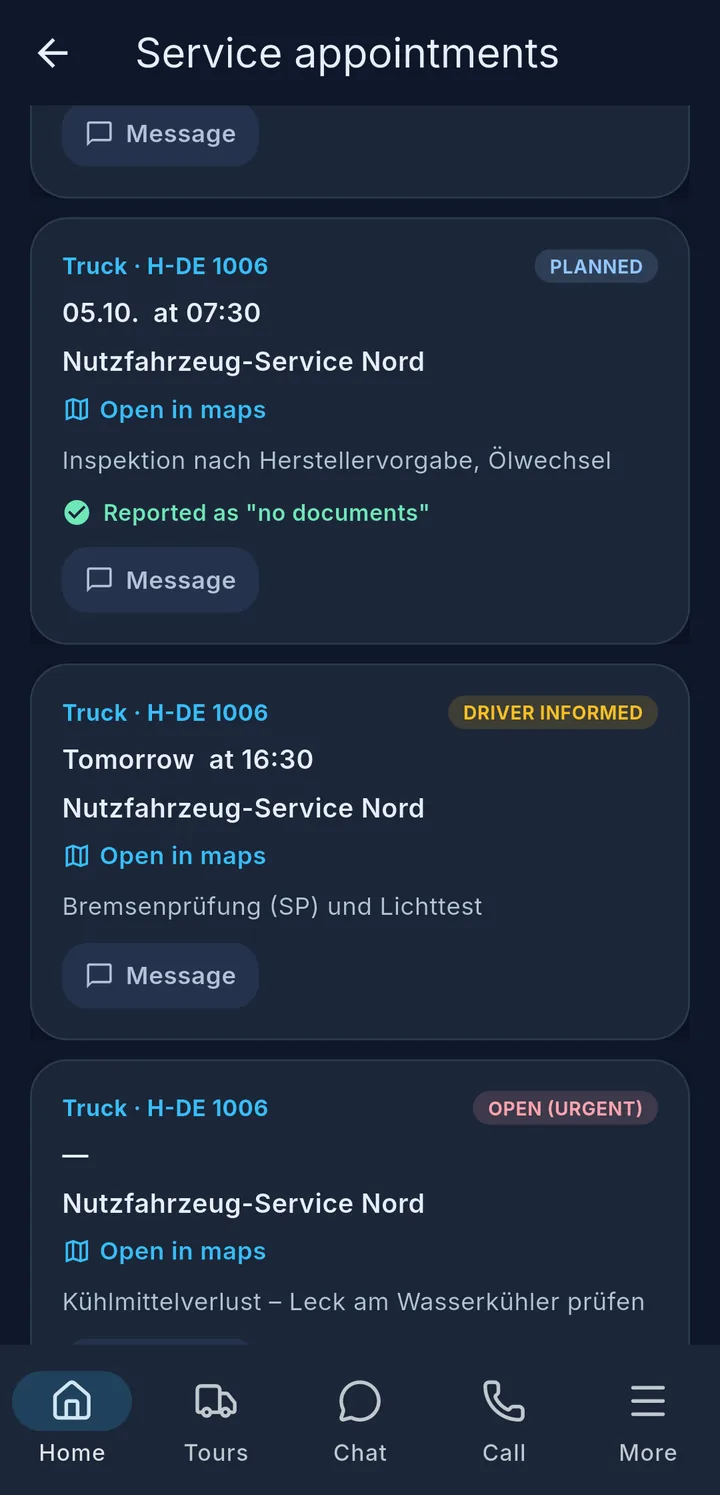
Service appointments with the statuses Planned, Driver informed and Open (urgent)

Appointments and statuses

The Service tile opens the Service appointments of tractor unit and trailer. At the top are the Vehicle documents, e.g. registration certificate or insurance card. Tap to open the file – handy at the workshop or during a roadside check.

Each appointment shows vehicle, date and time, the workshop with Open in maps and the reason, e.g. "Brake test (SP) and light test". At the top right is the status:

Status Meaning
Planned The appointment is fixed.
Driver informed Dispatch has given you the appointment.
Open (urgent) A finding, e.g. a leak or a defect from an inspection, must be fixed soon.
Completed The appointment has taken place.

You also see upcoming appointments on the home screen under Upcoming service appointments.

After the appointment

When the appointment is over, it shows in yellow: "This appointment has taken place. Please send the workshop documents." Below it you have three buttons:

  • Send documents – take photos of the workshop order, inspection report or other papers with Add photo, add a message if needed, then Send.
  • No documents – if you did not get any papers. Choose one of the suggested answers or briefly write why yourself.
  • Message – a question or note about the appointment to dispatch. This button is there on every appointment, also before it.

After that the appointment shows in green Documents sent or Reported as "no documents".

Contact the fleet

At the very bottom of the page is the Contact the fleet card – for a general message to the fleet team, e.g. a question about the vehicle or a problem with an appointment.

  1. Tap Contact the fleet.
  2. Write your message and attach photos if needed.
  3. If you would like an answer by email, enter your Email address (optional).
  4. Send message – the app confirms with "Message sent to the fleet".

Your colleagues from the fleet team will then get back to you.

Important

Do not report a defect, a breakdown or an accident here, but via the tiles on the home screen – see chapter Accident & breakdown.