FR8 Driver AssistantHelp
EN
← All chapters
Chapter 11 · Administration

Knowledge & coins

Knowledge

12

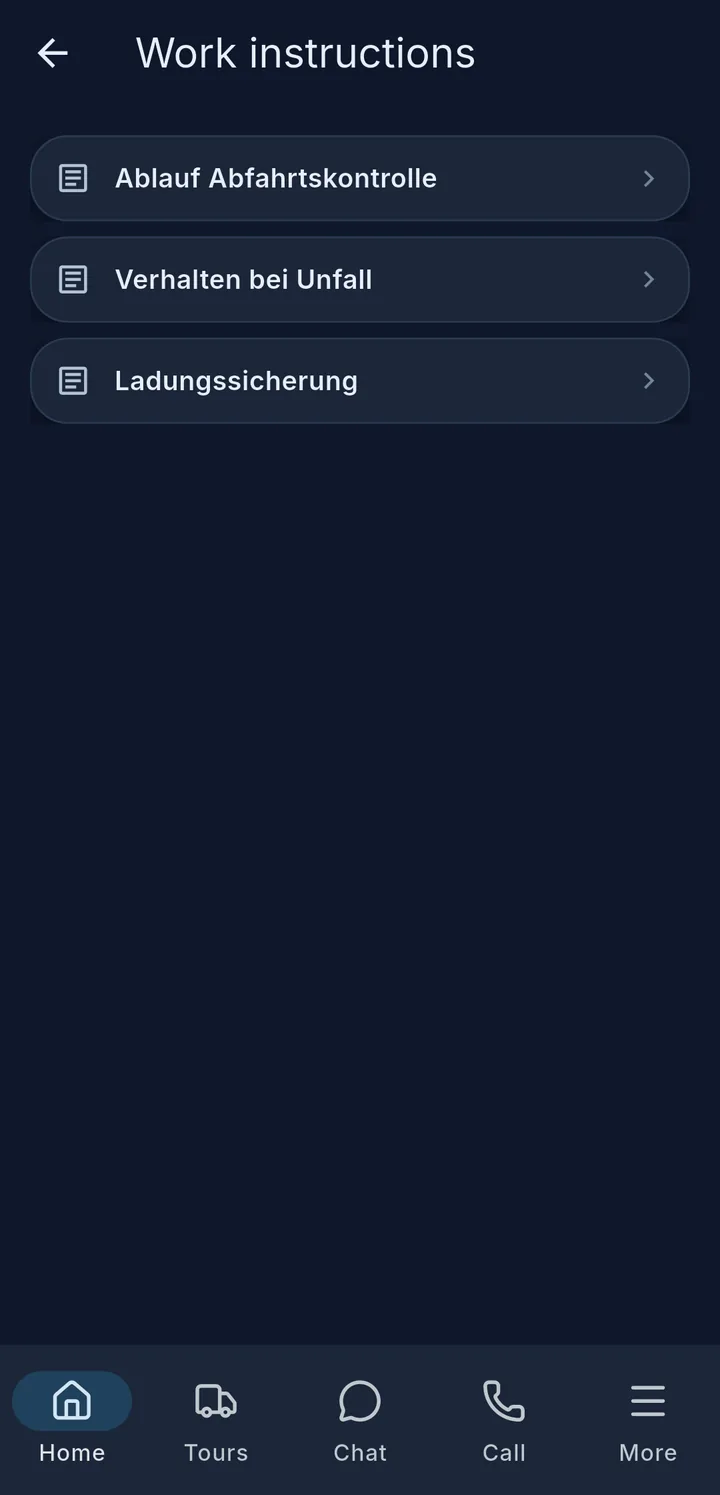
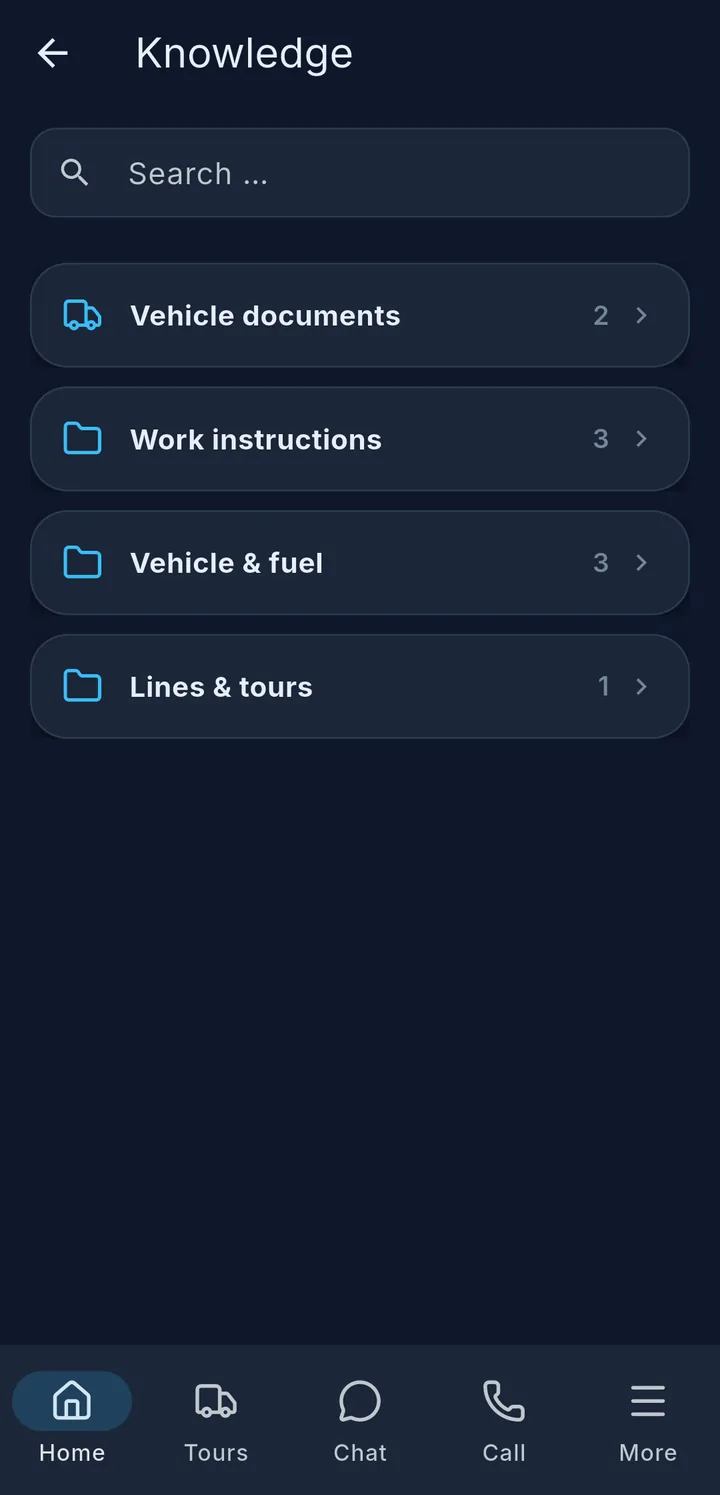
Under Knowledge you find everything to read up on: work instructions, tour descriptions, your vehicle's papers and more – sorted in folders 2. With Search … 1 you search all folders at once.

Articles you have opened once can also be read without a signal.

Tip

You can also just ask: Jarvis in the chat knows the same content, e.g. "Jarvis, where can I refuel today?"
Coins & rewards

34

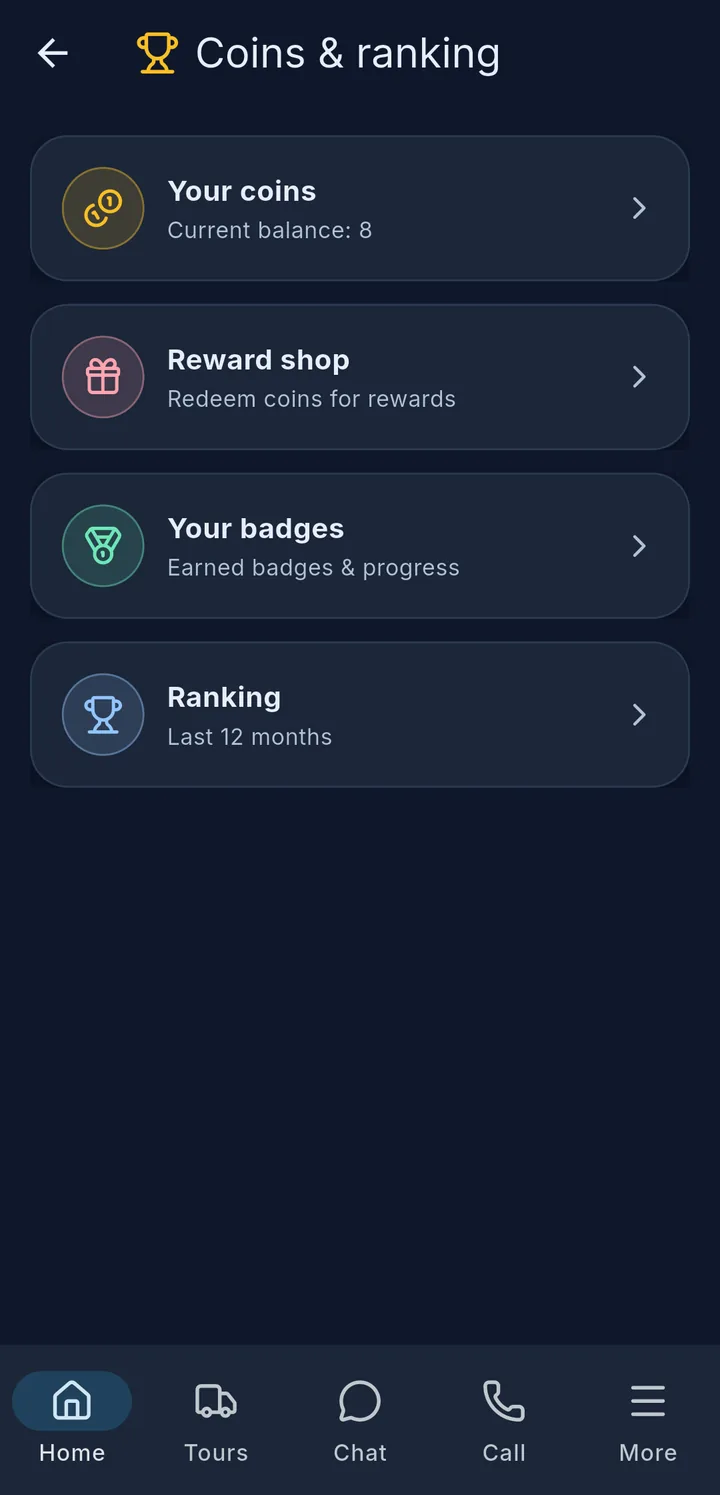
If your company uses coins, you get coins for careful work in the app – e.g. for complete tour times and photos, tours finished on time or departure checks. You redeem your coins for rewards in the Reward shop. If something is missing, coins can also be deducted. You see your balance 3 at the top right of the home screen.

The Coins & ranking tile has four sections 4:

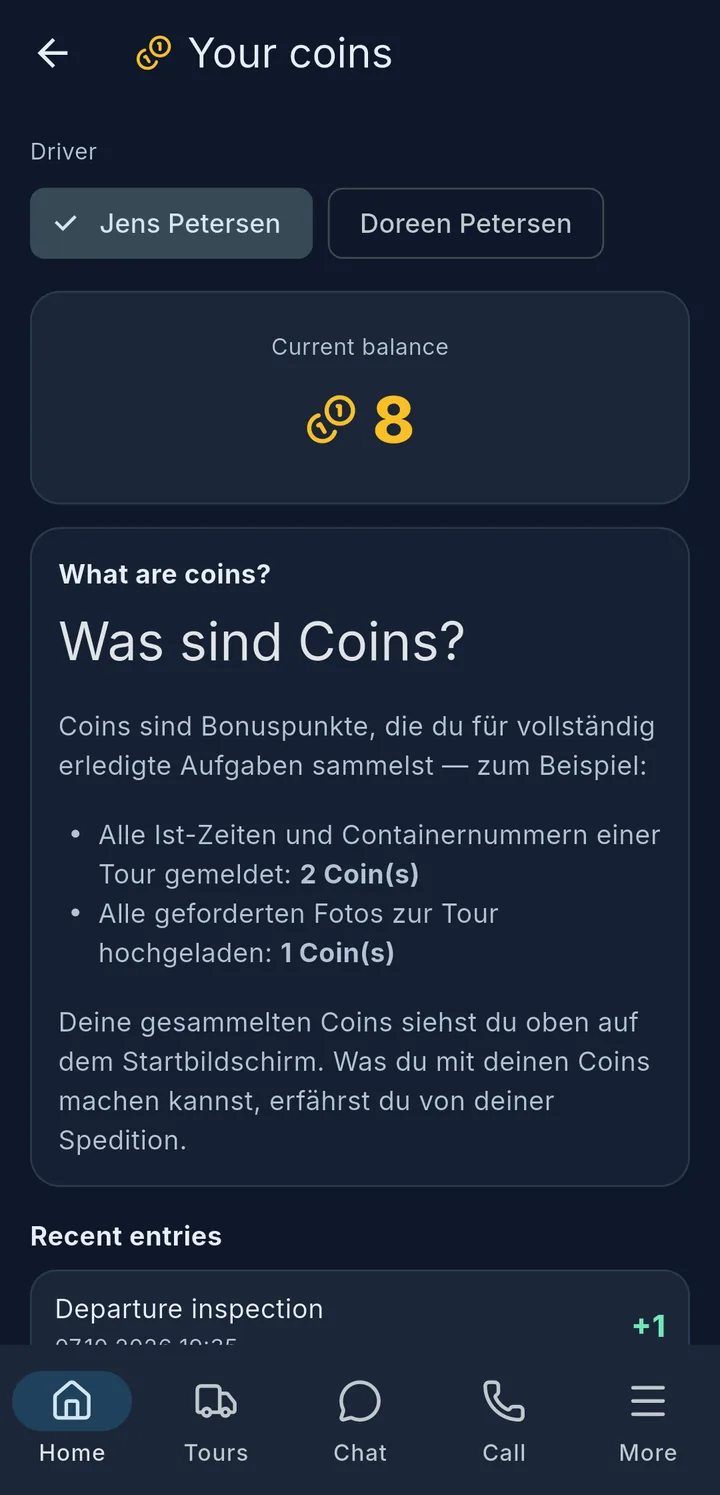
  • Your coins – balance and latest entries; What are coins? explains the rules.
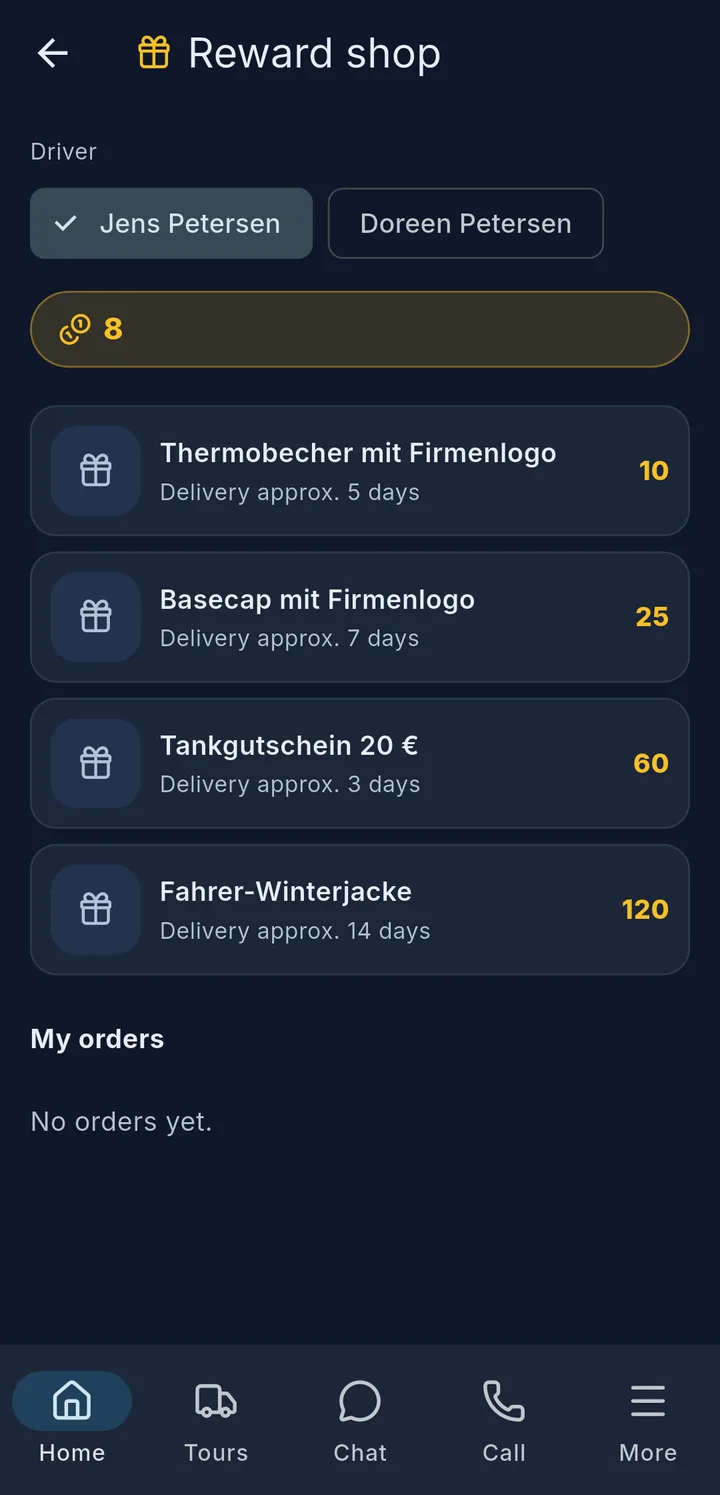
  • Reward shop – choose a reward and tap Redeem now.
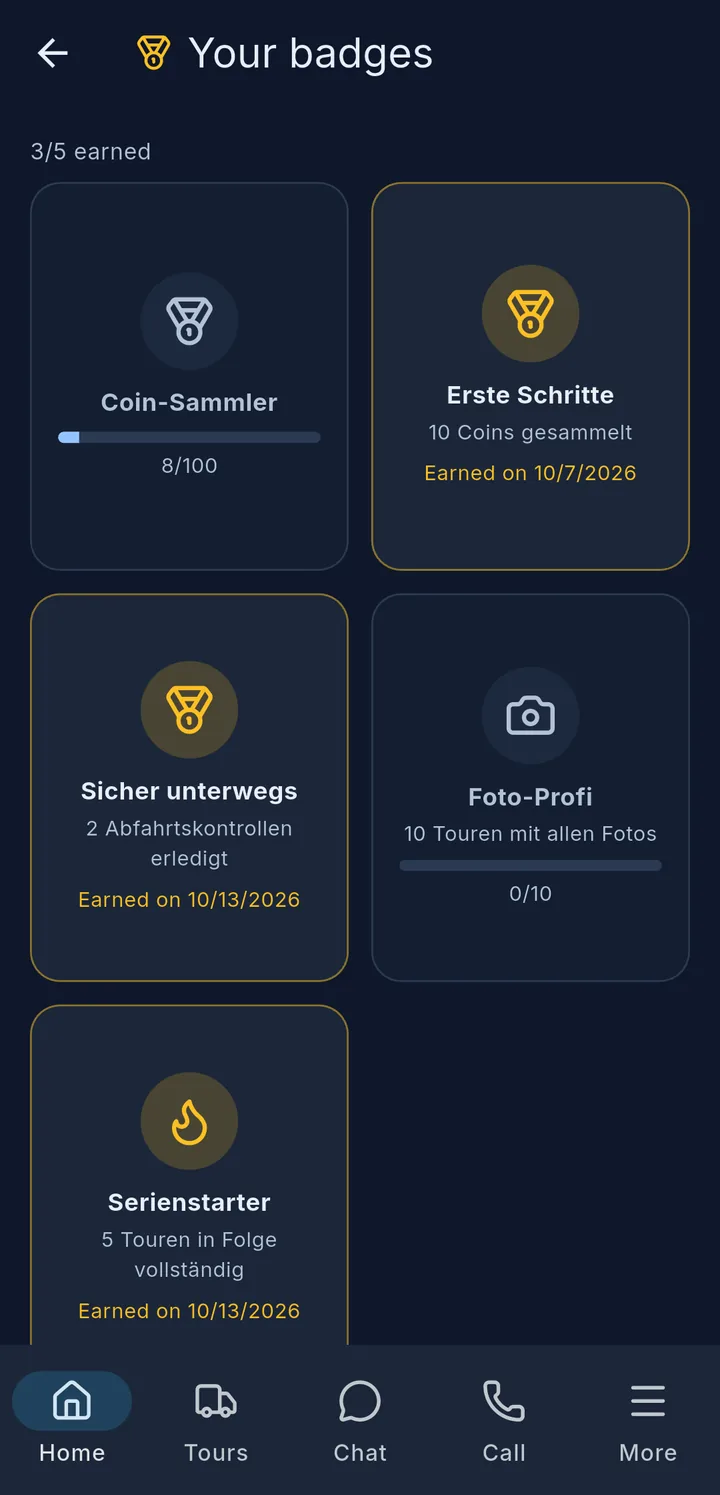
  • Your badges – what you have already achieved.
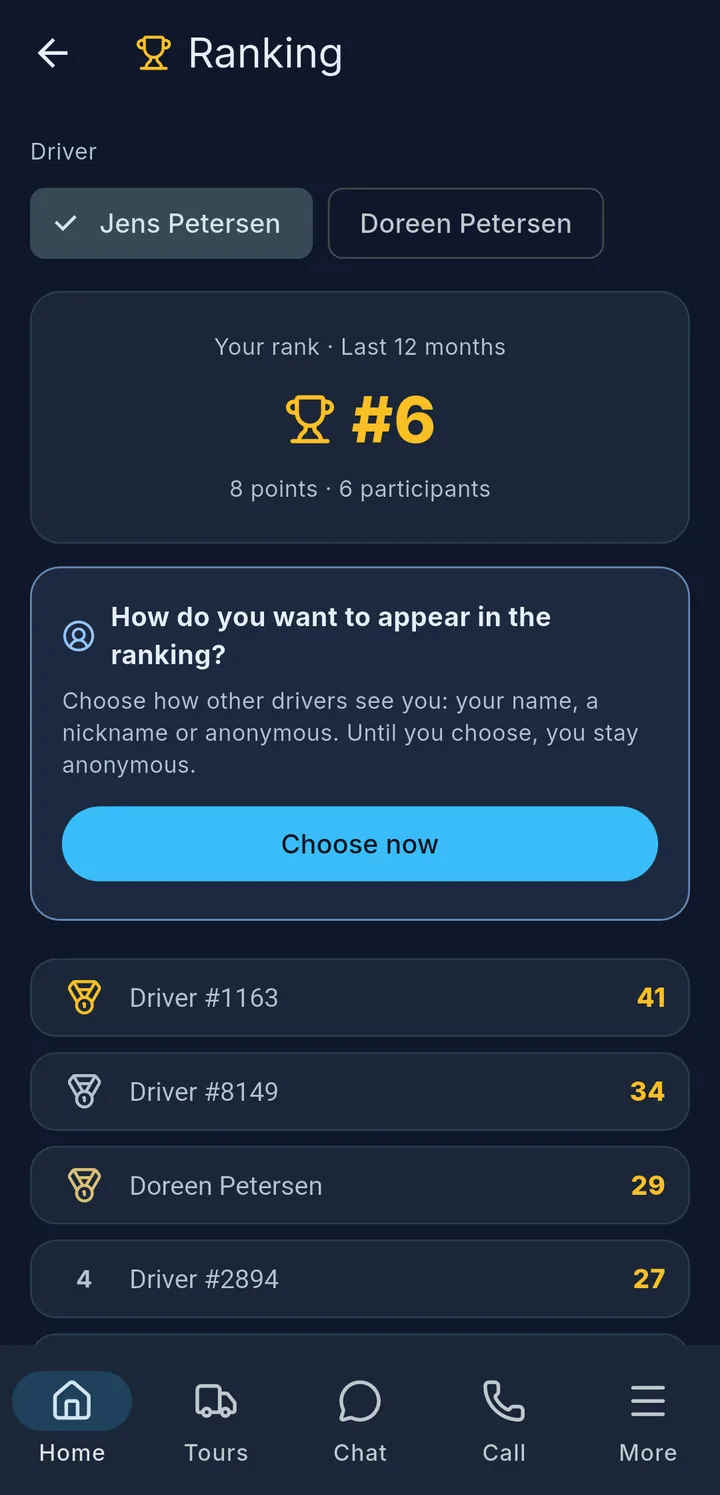
  • Ranking – you decide whether you appear with your name, a nickname or anonymously.

More about knowledge

A folder, here Work instructions, with its articles
An article to read up on

The folders

  • Vehicle documents – your vehicle's papers, e.g. registration certificate or insurance card, each with Truck or Trailer and licence plate.
  • Tour descriptions – descriptions of fixed tours. They have the label From fixed tour.
  • Your company creates further folders, e.g. work instructions or lines & tours.

The number on the right shows how many entries a folder has. Tap to open the folder, tap again to open the article. Folders and articles appear in your app language if your company has stored a translation.

Articles, pictures and videos

  • Pictures are shown in the text, with their caption below. Tap to show the picture large. Several pictures in a row are shown as a strip – swipe sideways.
  • Videos and other links open in the browser or in the YouTube app. Some entries are only a link – then tap Open link.
  • Attachments are shown below the text, e.g. PDFs. Tap to open them.

If opening does not work, the app shows "Could not open."

Without a signal

Articles you have opened once can also be read without a signal. Except pictures: they are only stored for a few hours. If "Reloading image (internet required)" is shown in their place, the app briefly needs a signal.

Tip

Besides Jarvis in the chat, the AI assistant also knows the same content if your company has enabled it – see Chat, calls & incidents. Both only answer from what is enabled for your vehicle, and name the document as the source.

More about coins & rewards

Your coins

Your coins: Current balance, What are coins? and Recent entries

At the top is your Current balance. With a two-driver crew you choose under Driver whose coins you want to see.

What are coins? shows your company's rules – including how many coins you get for what. Your company decides this.

Under Recent entries each entry is listed with date and reason, e.g.:

Entry What for
Tour actual data complete · Tour photos complete · Tour finished on time tour reported properly
Bonus: tours in a row several complete tours in a row
Departure check · Vehicle handover · Refuelling sent · Briefing signed · License check approved other tasks in the app
Reward redeemed coins spent in the reward shop
Deduction: tour not fully reported tour details are missing
Coins expired · Correction depending on your company

With Load more you see older entries.

Redeeming a reward

  1. In the Reward shop, tap a reward. It shows its price in coins, possibly Free, the delivery time or a limit such as "Max. 1× per driver".
  2. If the reward comes in several versions, Choose a variant, e.g. the size.
  3. Under Delivery choose Pickup or – depending on your company – Shipping. For shipping, enter name, address and country.
  4. Redeem now. The coins are deducted at once, and the app shows your order number.

If it does not work, the app tells you why: "Not enough coins.", Out of stock or "Maximum per driver reached."

Under My orders you see the status: Ordered, Processing, Ready for pickup, Shipped, Picked up or Cancelled.

Your badges

Your badges: earned ones in colour, open ones in grey with progress

At the top you see how many badges you have, e.g. "3/5 earned". Earned badges are in colour and show Earned on with the date. Open ones are grey and show your progress as a bar, e.g. "8/100".

If a badge has been added since your last visit, there is a short burst of confetti when you open it, and at the top the notice New badge earned! with its name. The app also tells you about a new badge in the chat.

Ranking

Ranking: your rank, below it the other drivers

The Ranking shows the drivers of your company, scored over the last 12 months. At the top is Your rank with your points and the number of participants, below it the list. The first three have a medal, your entry is marked "(You)".

How you appear: The first time you open it, the app asks How do you want to appear in the ranking? Tap Choose now and pick My name, Nickname or Stay anonymous, then Save. Until you choose, you appear anonymously as "Driver #…" in the list. Later you change this with Change display name.