FR8 Driver AssistantHelp
EN
← All chapters
Chapter 12 · Administration

Settings, offline & sign-out

123

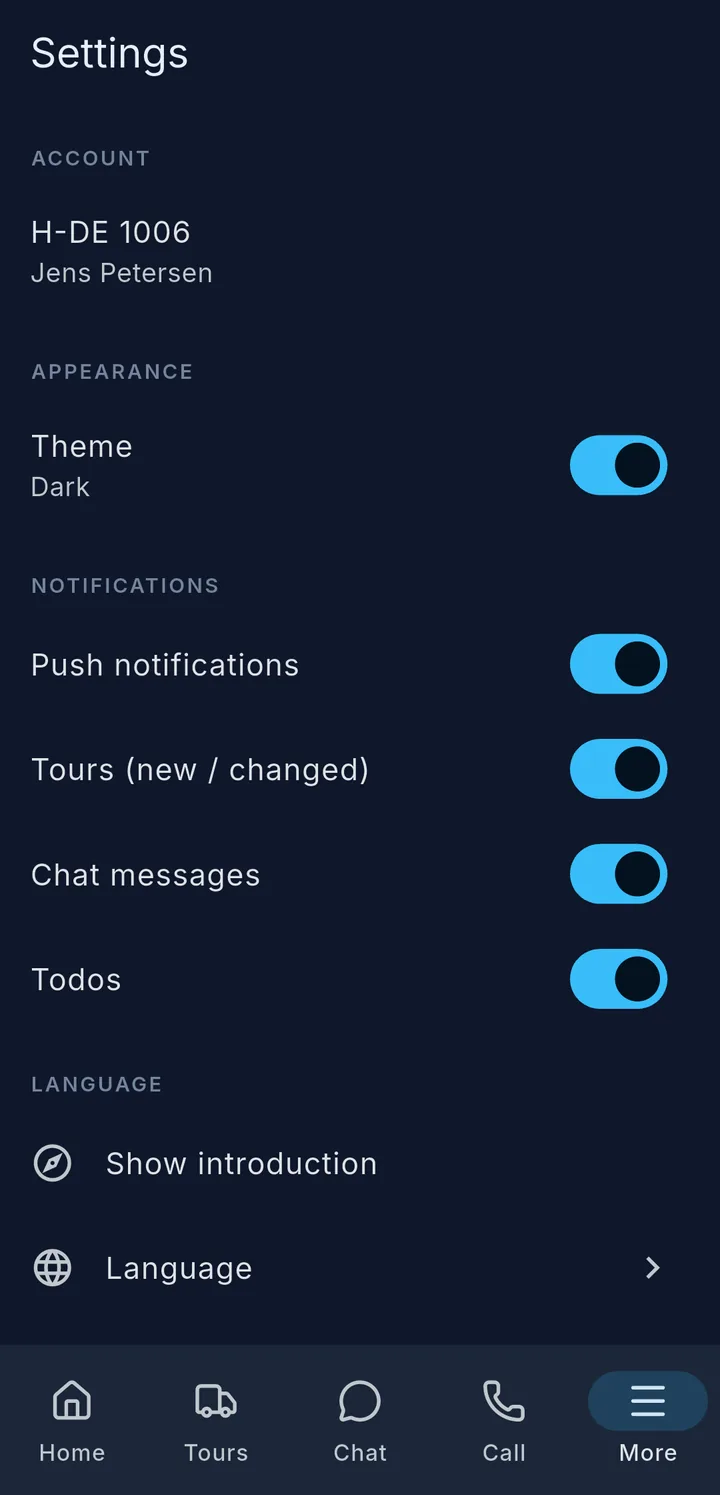
Under More → Settings you find:

  • Online help – at the very top, below it Show introduction.
  • Theme 1 – night (dark) or day (light).
  • Notifications 2 – push for new tours, chat messages and to-dos, each can be switched on and off.
  • Language 3 – change the app language.
  • Sign out – at the very bottom.

The app translates the screens and the note from dispatch. Addresses, chat messages and to-dos appear as they were typed in.

Notifications: If they are switched off on your phone, the home screen shows a notice. Use Open settings to allow them for the app – otherwise you miss new tours.

No signal: The app also works offline. Tours, stops, knowledge and fuel cards stay readable. The phone saves times, photos and reports and sends them automatically as soon as there is a signal again. The top of the home screen then shows offline instead of active.

Notice on the home screen What to do?
Being sent Nothing – it goes out automatically.
Not sent Sign in again, then everything is sent.
Not accepted Tell the office.
Important

Finish tour needs a signal – the app tells you if it does not work right now. If your sign-in expires, nothing that has not been sent yet is lost.
More about settings

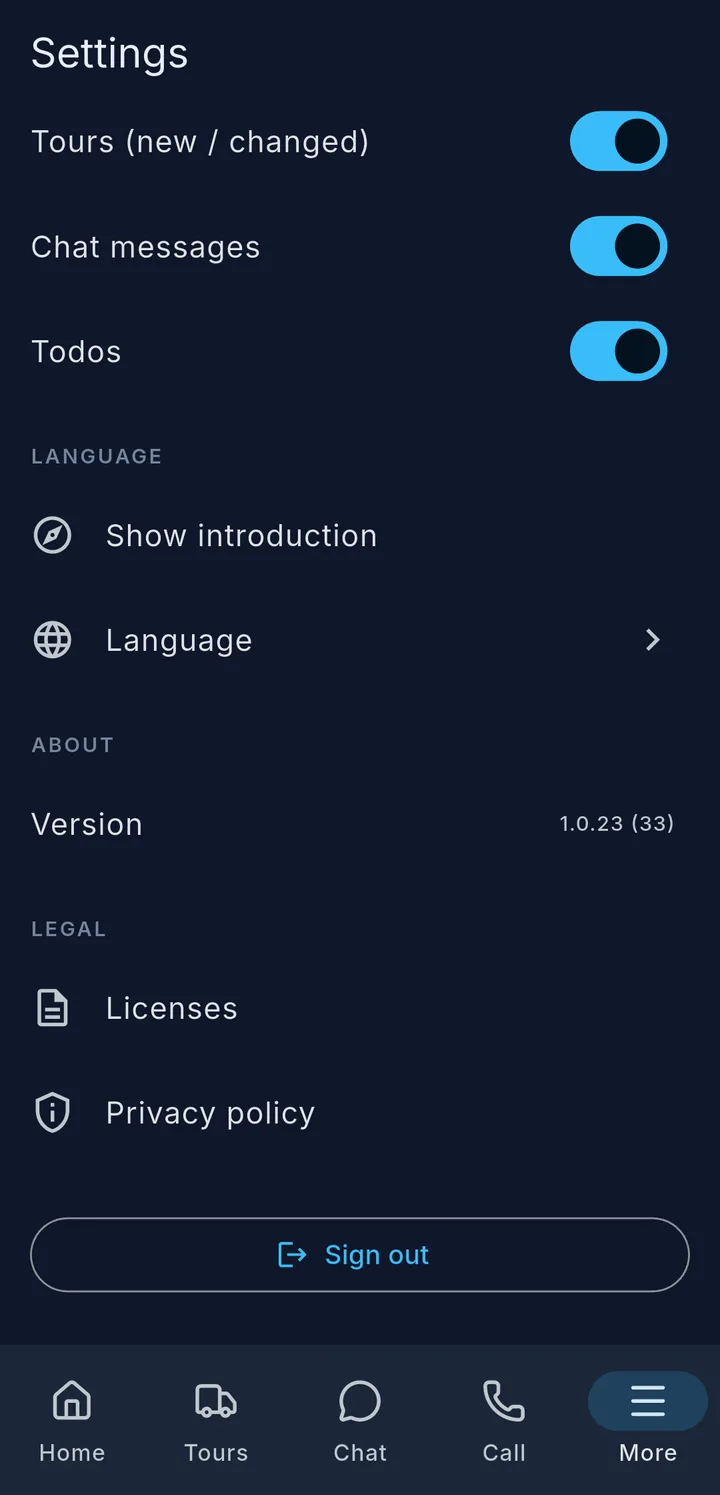
Further down: Language, Version, Licenses, Privacy policy and Sign out

The Settings page is divided into sections:

Section What is there
Account The signed-in vehicle and the driver or drivers.
Help Online help opens this help in your language. Show introduction shows the introduction again.
Appearance Theme – Dark or Light.
Notifications Switch push on and off, see below.
Language Language – choose the app language.
About The Version of the app – important if the office asks for it.
Legal Licenses and Privacy policy.

If there is a new version of the app, a window with Update now can appear. It opens the App Store or Google Play. With Later you close it.

Notifications

The app announces new and changed tours, chat messages and to-dos by push – even when it is closed.

  • Push notifications switches everything on or off.
  • Below it you choose one by one: Tours (new / changed), Chat messages and Todos. These switches only work if Push notifications is on.
  • If you switch push on, the phone asks for permission. If you decline, the app shows "Enable notifications in your device settings."

Push off on the phone? Then the home screen shows the Notifications are turned off card. Tap Open settings and allow notifications:

  • Android: "Open settings → Notifications → allow."
  • iPhone: "Open settings → Notifications → turn on 'Allow Notifications'."

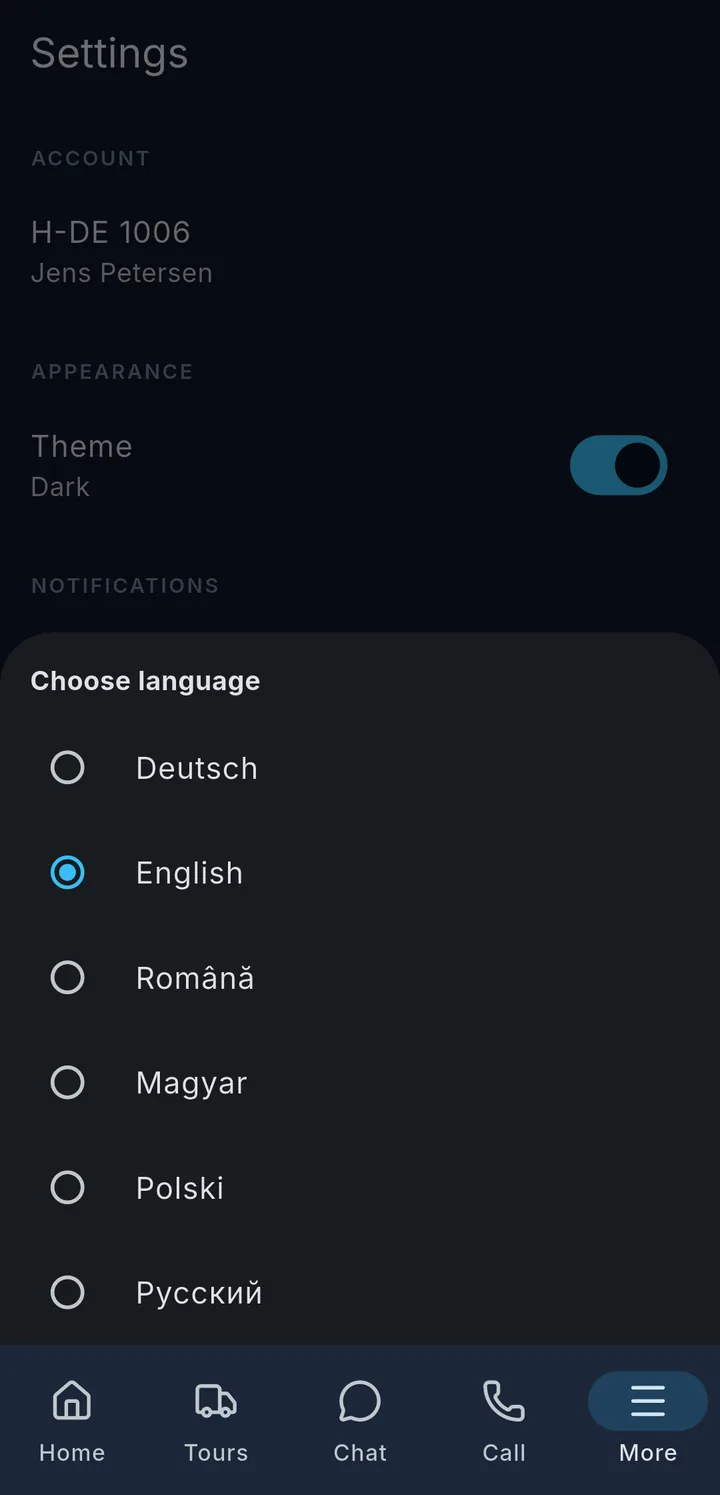
Language

Choose language window

Tap Language and choose your language in the Choose language window. The app switches right away. You can choose from the languages your company has enabled.

If your company has stored a language for you, the app sets it by itself after you sign in. Once you have chosen yourself, your choice stays.

Country notes and latest info are also not translated – they appear as your company entered them, usually in German.

Sign out

Tap Sign out at the very bottom. The app asks: Sign out? – "You will be signed out of the app." Confirm with Sign out or tap Cancel.

After that the sign-in page appears. You no longer get push notifications for this vehicle until you sign in again. If you want to change vehicle, sign out and sign in again with the new vehicle.

Your company decides how long a sign-in is valid. When it has expired, the app takes you to the sign-in page.

More about offline & resending

If you send something without a signal, the app briefly shows "Will be sent as soon as there is a connection." You can carry on working as normal.

If reports are still waiting, the home screen shows a card with the number, e.g. "2 reports are waiting to be sent." This is how to deal with the three cases:

Being sent – The reports are only waiting for a signal. The card cannot be tapped; there is nothing to do. "Nothing is lost — everything will be sent as soon as there is a connection."

Not sent – The reports are waiting for you to sign in, because your sign-in has expired. Sign in again, then everything is sent. Tap the card to see the list of reports with time:

  • Send again sends one report again, Send all again sends all of them at once.
  • Discard deletes a report for good – only after the question Really discard?. Only discard if you are sure it is no longer needed.

Not accepted – Your company's system has rejected a report. Sending again does not help here, so there is no button for it. The app says: "Please contact the office — then you can discard the report."

Tip

Do not send a report twice just because it is still waiting. It goes out automatically – otherwise it arrives twice.