FR8 Driver AssistantHelp
EN
← All chapters
Chapter 9 · Vehicle

Fuel & documents

Fuel

1
2

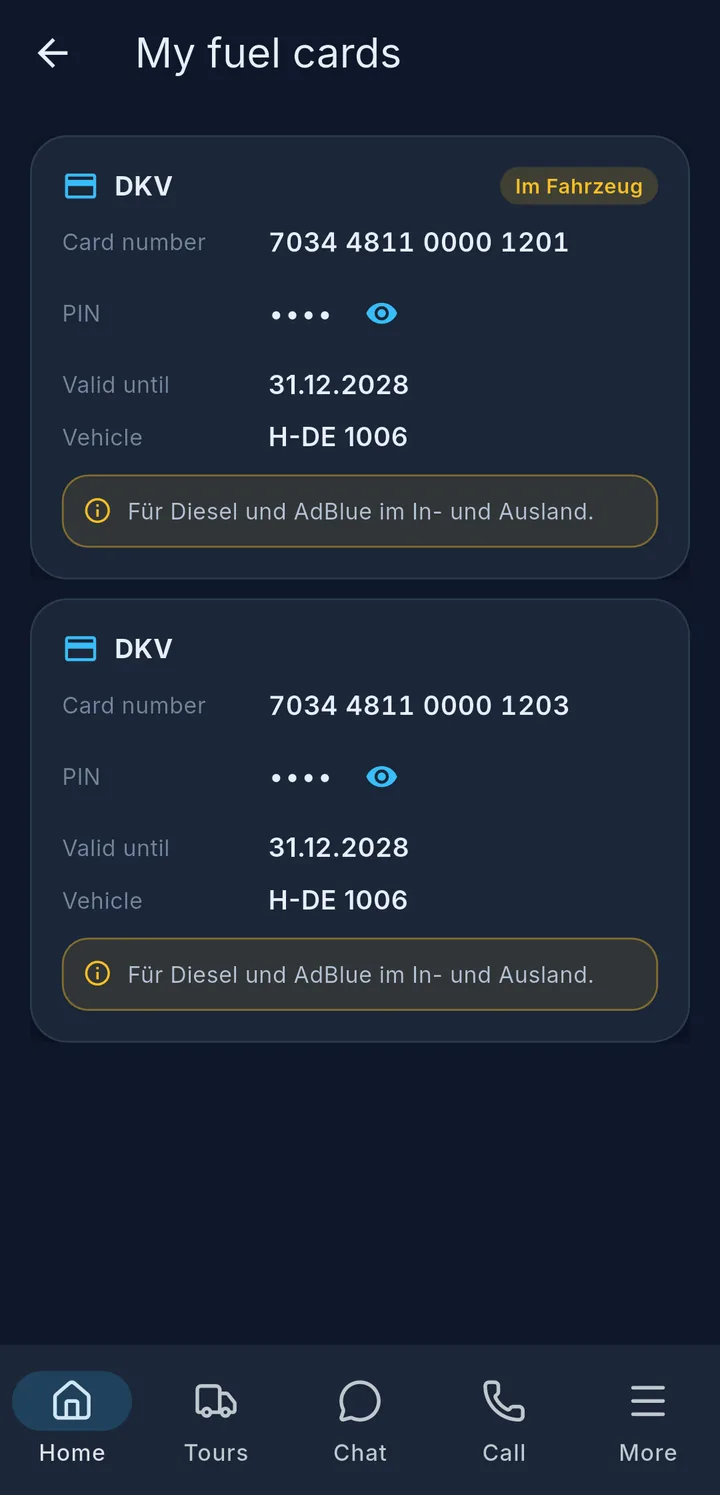
My fuel cards – the cards of your vehicle. Tap the eye 1 to see the PIN, if your company allows it. Below it you see what the card is valid for.

New refueling:

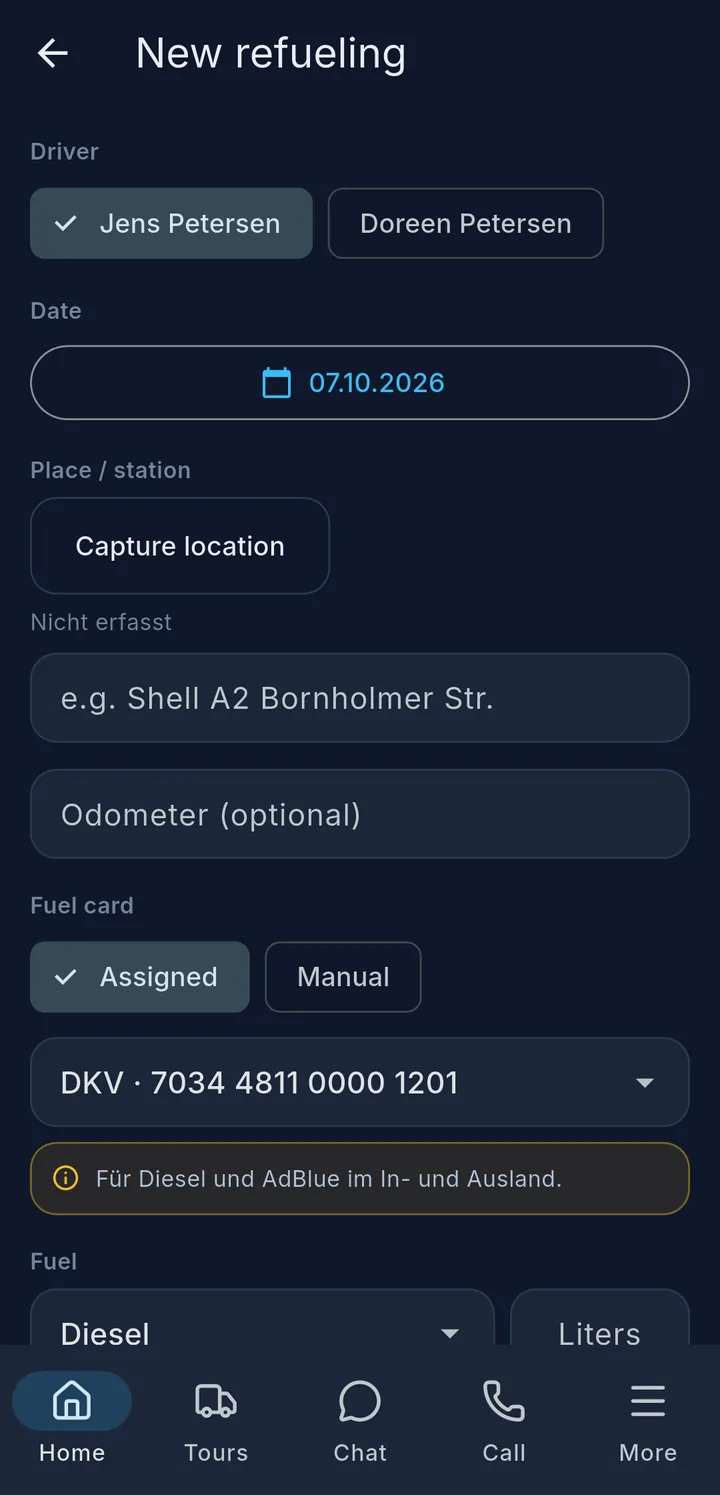
  1. Driver, date and filling station – Capture location 2 fills in your position.
  2. Choose the fuel card.
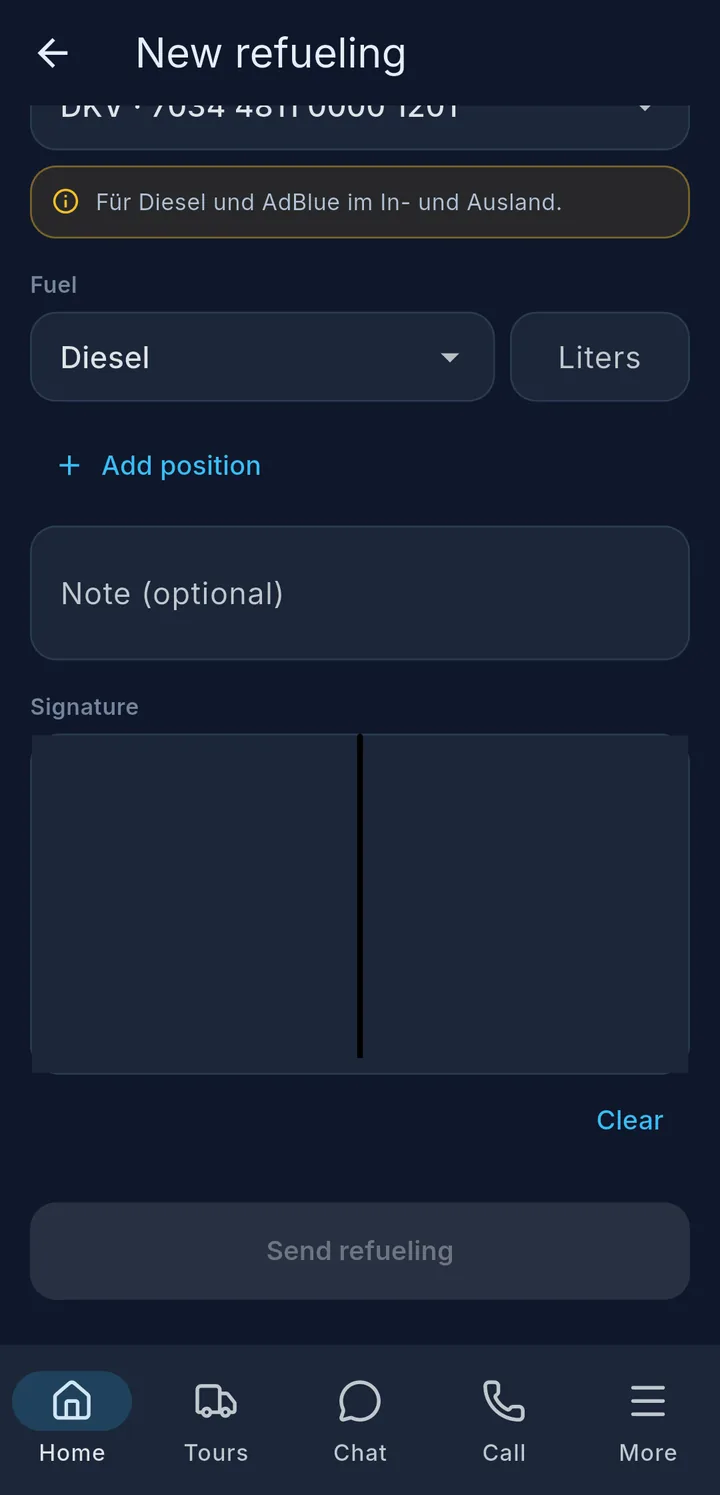
  3. Fuel type and litres – with Add position, e.g. diesel and AdBlue separately.
  4. Sign and tap Send refueling.

Documents

3

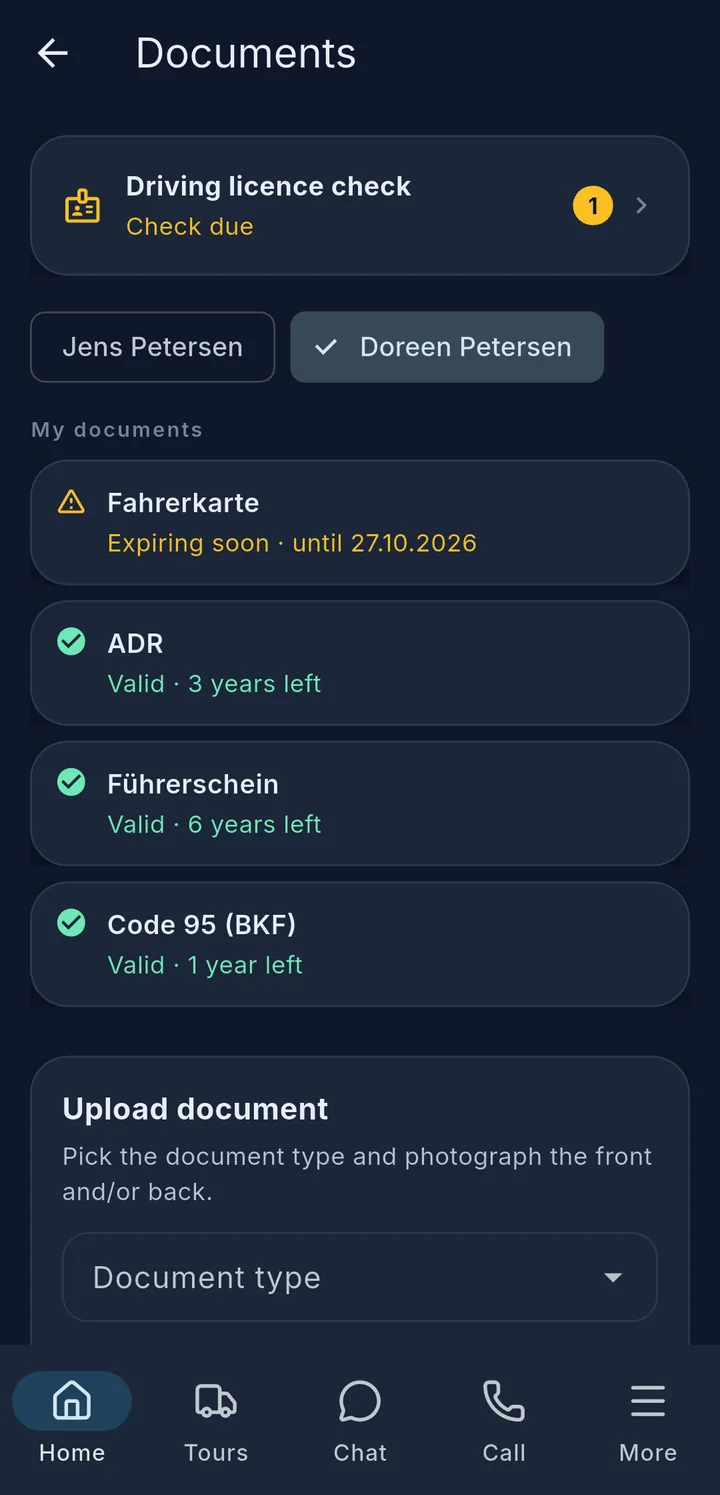
My documents – driving licence, driver card, Code 95, ADR. Each document shows its status 3: green Valid, yellow Expiring soon, red Expired or Missing.

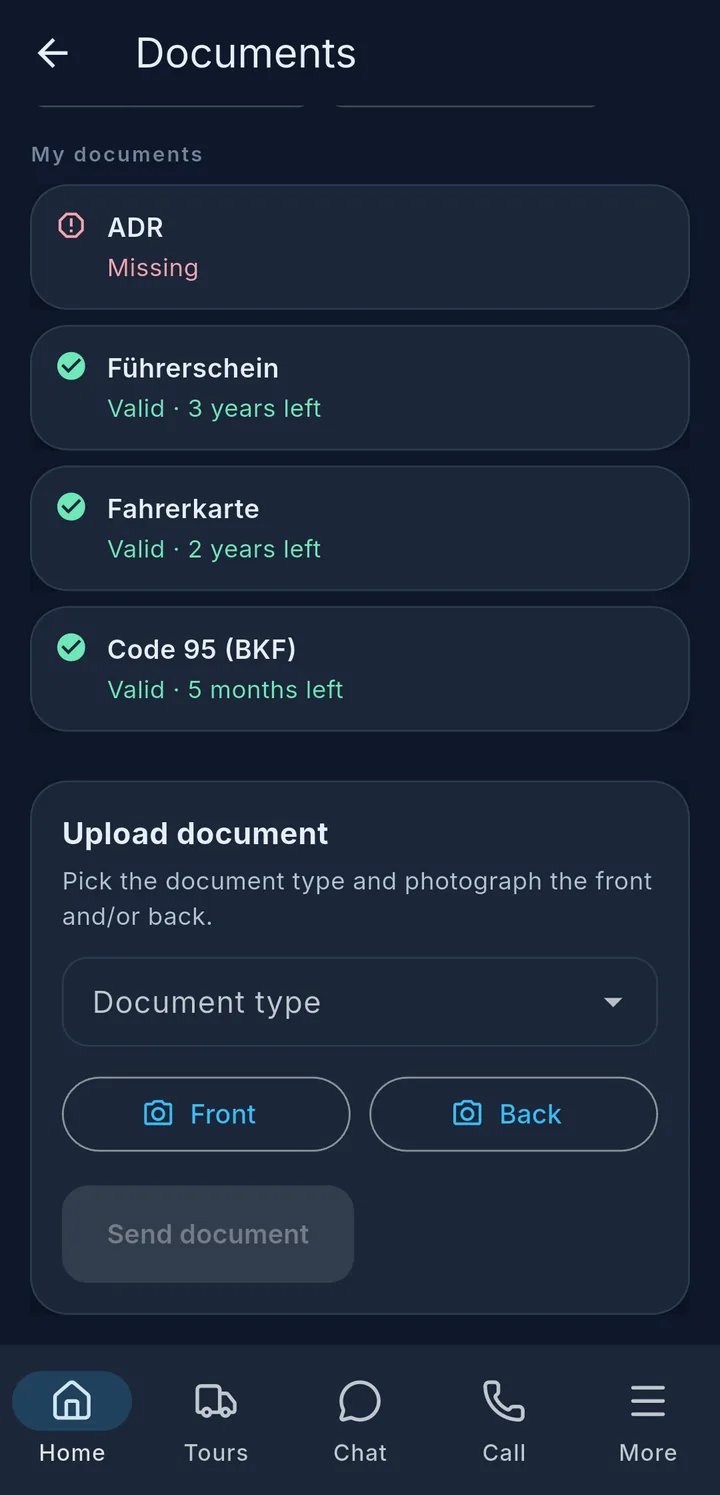
Uploading a new document: Choose the document type, take photos of the front and back, tap Send document. Until the office confirms it, it shows Under review.

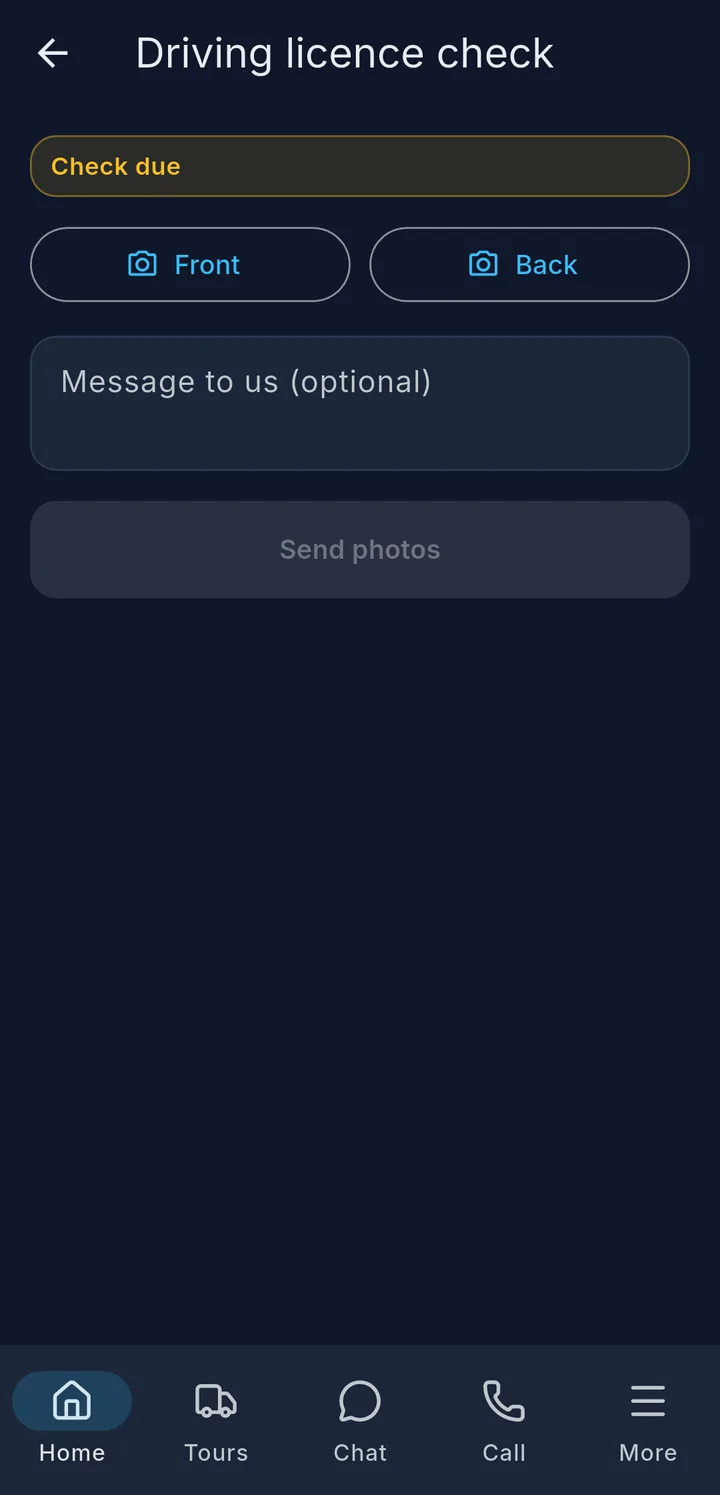
Driving licence check: When it is due, you see it at the top of the page and on the home screen. Take photos of the front and back, tap Send photos.

Your company's duty

Anyone who lets a vehicle be driven must make sure the driver has a valid driving licence (§ 21 StVG). That is why your company checks your licence regularly, usually several times a year. Your driver card, Code 95 and ADR certificate must also be valid.
More about refuelling

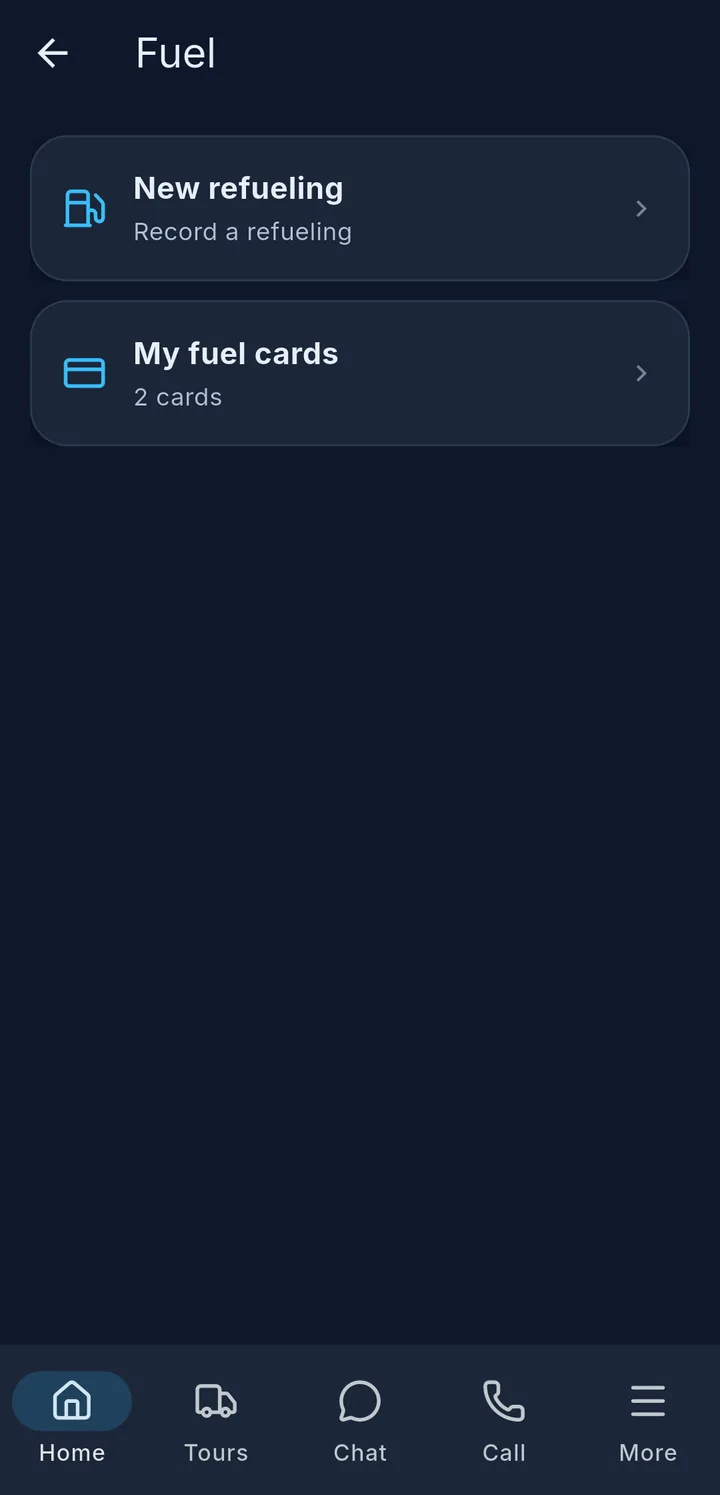
Refuel tile: New refueling and My fuel cards
Note about the fuel card, Fuel with Liters, Add position and signature

My fuel cards

Each card shows fuel company, Card number, PIN, Valid until and Vehicle. You only see the cards that are currently assigned to your vehicle.

If something is wrong with a card, its status is shown in yellow at the top right:

Status Meaning
Blocked The card is blocked – you cannot refuel with it.
Expired The expiry date has passed.
Lost/defective The card has been reported lost or defective.
In office The card is in the office, not in the vehicle.
Inactive The card is not in use.

If a status is shown and you need the card, talk to dispatch.

If your company has enabled it, the AI assistant (call from the app) and Jarvis in the chat also tell you the PIN – e.g. "Jarvis, what is the PIN of the DKV card?". This too only applies to the card of your vehicle. See chapter Chat, calls & incidents.

New refueling step by step

  1. Driver – with a two-driver crew you choose who refuelled.
  2. Date and Place / station – Capture location fills in your position by GPS. Or type in the filling station, e.g. "Shell A2 Bornholmer Str.".
  3. Odometer (optional).
  4. Fuel card:
    • Assigned – choose a card of your vehicle. What it is valid for is shown below in yellow.
    • Manual – enter Fuel company and Card number yourself, e.g. for a card that is not in the list.
  5. Fuel – choose the type and enter Liters. With Add position you record e.g. diesel and AdBlue separately.
  6. Note (optional), sign and tap Send refueling.

If your company has stored notes about refuelling, they are shown in the form.

The app reports "Refueling sent". Without network it says "Will be sent as soon as there is a connection." – the refuelling goes out automatically as soon as there is network again.

Logging a refuelling later

If your vehicle's fuel level rises clearly without a refuelling being entered, the notice Log your refuelling appears once when you open the home screen: "One refuelling is still missing your entry. Tap to add it." Below it are date, time and litres, e.g. "27.08. 14:20 · 480 litres".

  • Go to "Fuel" opens the refuelling entry – enter the refuelling as usual.
  • Close hides the notice. The next time you start the app, it appears again until the refuelling is entered.

You have not done anything wrong – only the record is missing, and only you can add it. As soon as the refuelling is entered, the notice disappears by itself. Your company decides itself whether it uses this notice.

More about documents

With two drivers, choose your own name at the top; at the very top Driving licence check with Check due
Upload document with Document type, Front and Back

All statuses

If two people drive the vehicle, choose your name at the top. Under My documents each document shows its status:

Status Meaning
Valid · … left (green) Everything is fine, with time remaining, e.g. "3 years left".
Expiring soon · until … (yellow) Renew it in good time and upload the new document.
Expired · since … (red) No longer valid.
Missing (red) Your company needs this document, but it is not there.
Under review Uploaded, the office is still checking it.
Rejected The picture could not be used. Please upload it again.

If a document is missing or will expire soon, Check documents appears on the home screen.

Uploading a document

At the bottom of the page under Upload document: choose the Document type, take a photo of the Front and, if needed, the Back, then Send document. The app reports "Document sent". Take the photo of the document straight, in good light and without reflections – otherwise it may be rejected.

Driving licence check

Driving licence check: take photos of front and back, Send photos

If a check is due, Driving licence check with Check due is shown at the top of the page – and on the home screen. Tap it to open the check:

  1. Take photos of the Front and Back of your driving licence.
  2. If needed, write a Message to us (optional).
  3. Send photos. The app reports "Licence photos sent".

If the check is overdue, the app shows for how many days, e.g. "3 days overdue". If none is due right now, it says "No driving licence check is currently due."